What is an integration in Rose Rocket? Switch on, not build
An integration is a ready-made connection between Rose Rocket and another system, such as QuickBooks Online or DAT, that you switch on rather than build.
On this page3 sections
What it is
An integration is a ready-made connection between Rose Rocket and another system, such as QuickBooks Online, Geotab, DAT or an EDI partner, that you switch on for your organization rather than build.
Take accounting, for example QuickBooks Online. Invoices are written in Rose Rocket and the books are kept in QuickBooks, so someone retypes each invoice there and, later, its payment status back. Switch the QuickBooks Online integration on and invoices, bills and payment status pass between the two on their own. The copying stops.
Switched on, not built
An integration is finished before you meet it. The connector already knows how the other system speaks and which Rose Rocket records its data belongs to, so switching it on is a settings task for an admin, not a build. It belongs to your organization: once on, it is on for everyone. Some connections run all the time, for example Geotab sending truck positions; others act when something happens, for example an EDI load tender arriving as an order.
Where the data lands
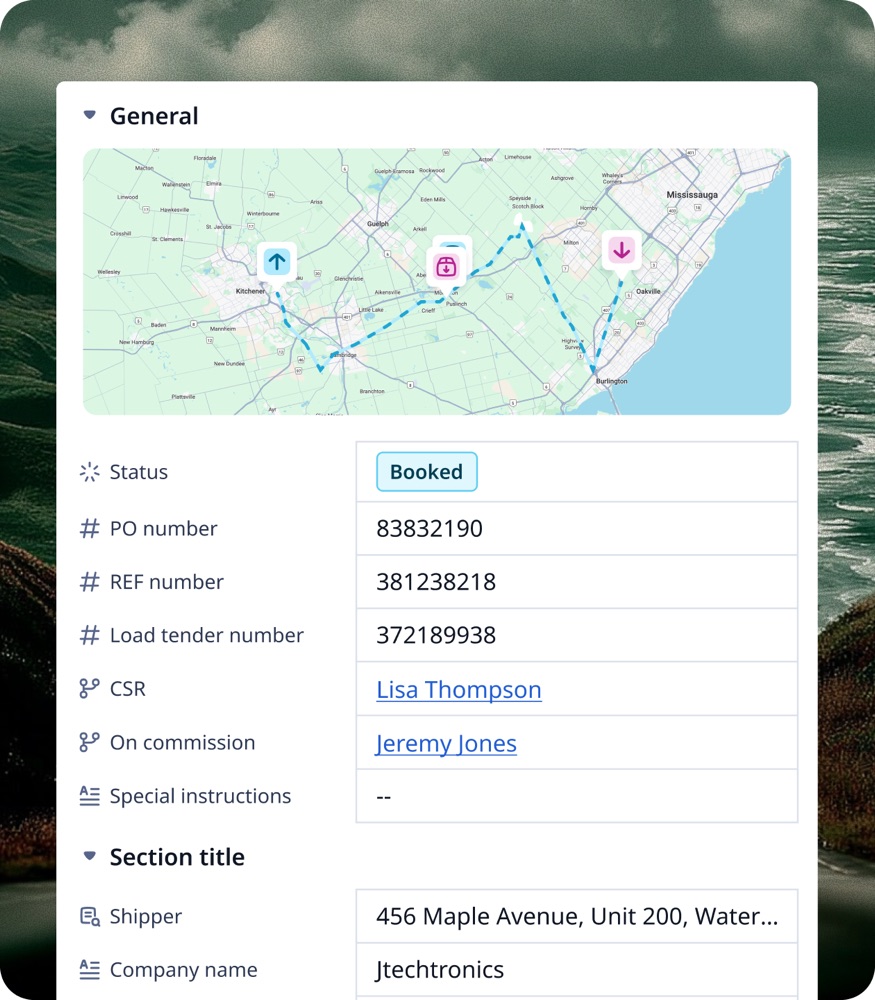
Data arriving through an integration lands on ordinary records. A load tender from an EDI partner becomes an order on the Orders board, its tender fields filled the way a typed order’s are; a payment recorded in QuickBooks Online changes an invoice’s status. There is no separate integration place: the data sits on the record page, for example ORD-28, in a field beside the ones people typed, and a proof of delivery a tracking connector returns sits on that record’s Documents tab like any other document. Because it is on ordinary records, it shows in board columns and a workflow can act on it.
The connectors
| Kind | Connectors | What it does for you |
|---|---|---|
| Accounting & ERP | QuickBooks Online · Microsoft Dynamics 365 Business Central | Invoices, bills and payments reach your books |
| Compliance & Customs | Highway · RMIS | Carriers vetted and monitored |
| EDI | Bitfreighter · SPS Commerce | Shipper load tenders arrive as orders |
| ELD & Telematics | Geotab · Terminal API | Truck positions, hours of service and driver data |
| Intermodal | CartonCloud | Warehouse and 3PL freight beside your orders |
| Load Boards | DAT · Truckstop | Post loads, find trucks, see market rates |
| Mapping & Routing | Trimble Maps (PC*Miler) | Truck-legal mileage and routes |
| Payments & Factoring | TriumphPay · Triumph factoring | Carrier audit, pay and factoring |
| Rating & Transit Times | SMC3 · SMC3 CCXL | LTL rates and carrier transit times |
| Visibility & Tracking | Chain · FourKites · Macropoint · Trucker Tools | Live location, arrivals, departures and PODs |
Builders call a switched-on connector a module; its settings sit under Module Settings, for example Terminal.
Where you meet it in Rose Rocket
- Settings (the Settings menu item, below the fold of the left nav) → Module Settings lists the connectors your organization has switched on, for example Terminal → set up once by an admin, on for everyone.
- Record page (for example, ORD-28) → a value an integration wrote sits in an ordinary field beside the ones people typed → same page, same fields, whoever filled them.
- Documents tab on a record page (for example, ORD-28) → a file a connector returns, such as a proof of delivery, listed beside the files people uploaded → one record, all its paperwork.
Go deeper
- Platform basics: objects, records, boards, workflows
- What is an org: where a connection is switched on
- What is a record: where synced data lands
- What is a document: files a connection returns
- What is a workflow: rules that act on synced data