Scheduled automation: run a Rose Rocket rule on a date
Schedule automation is the Rocket Engine action that waits for a date on an order, such as its last delivery, then runs once that day at 2:12 AM UTC.
On this page3 sections
What it does
Once you know how a workflow runs, Schedule automation is the action that waits. Most actions work the moment a rule fires. This one holds its step until a date on the record arrives, then runs it that day. The order delivers Thursday, and on Thursday the order is flagged for its proof of delivery, without anyone in dispatch keeping a calendar of which loads to chase.
Each record carries its own date, so one rule covers every order. For example, a rule on Order that waits for Last Delivery, the latest delivery appointment across the order’s shipments: the order delivering Thursday runs Thursday, and the one delivering next Tuesday runs next Tuesday.
| Part | What it does | For example |
|---|---|---|
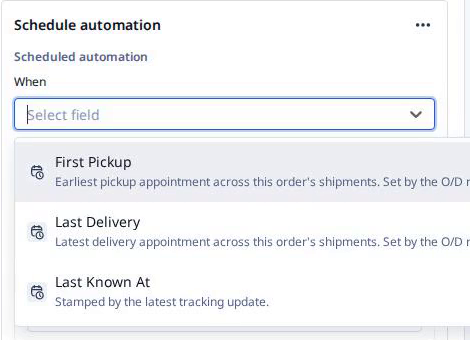
| When … has been reached | The date to wait for. The list holds only the record’s date fields. On an order the list offered First Pickup (the earliest pickup appointment across its shipments), Last Delivery (the latest delivery appointment) and Last Known At (stamped by the latest tracking update). | When Last Delivery has been reached |
| The timing note | Runs go out once a day, at 2:12 AM UTC, on the day the date is reached. The appointment’s time of day plays no part. | An order with a 3 PM delivery appointment runs at 2:12 AM UTC that day |
| Condition | Optional. A check made when the date arrives, so the order is judged as it stands that day, not as it stood when the rule was saved. Empty, it reads No conditions set. | Only if the order is not yet marked delivered |
| Choose action to run | What happens on the day: set a field on the record, or create a new record. | Set a POD follow-up field on the order |
The same steps cover the other end of the trip: wait for First Pickup and the order is flagged the day it loads, so the morning board shows what is going out.
How you set it up
- Click Settings in the left nav, then Rocket Engine under Builders. Click Create workflow.
- Click Create step and pick the trigger Record updated. Set Record type to Order.
- Under Action, pick Schedule automation. The card opens as Scheduled automation.
- Click When, which reads Select field, and pick Last Delivery. The card and the node on the canvas both read “When Last Delivery has been reached”, so anyone opening the rule later sees what it waits for.
- To skip orders that no longer need the step, click Add condition under Condition. The condition page covers how. It is checked on the day, so an order that delivered early is left alone.
- Click Choose action to run and pick what happens that day: set a field on the order, or create a new record. This is the step that replaces the reminder someone used to keep.
- Click Save changes once the action is in place. To leave without a live rule, click Discard changes instead.
What to watch for
- The trigger puts an order on the calendar, not the date. Schedule automation is an action, so it runs only when the rule fires. On a Record updated rule, an order is scheduled the next time someone saves it, and an order nobody touches never wakes the rule. Tick Record created as well so new orders are scheduled from their first save.
- No date, no run. An order with Last Delivery empty is not scheduled. Wait on a date your team always fills in.
- 2:12 AM UTC is the evening before in North America. That is 9:12 PM Eastern (10:12 PM in summer) and 6:12 PM Pacific. A Thursday delivery’s run can land Wednesday night your time, so write the action to be true a few hours early.
- The day comes before the truck. The run happens in the early hours of the delivery day, not when the load is delivered. Use it for the follow-up, never as proof the load arrived, and let a condition check the order’s real state.
- This is not a workflow on a schedule. The Rocket Engine page covers workflows that run on the clock with no record behind them: “every morning at six”. Schedule automation runs once per record, on that record’s own date. “Every Monday” is a schedule; “on each order’s delivery day” is this action.
- The canvas shows internal names. The trigger chip reads
Order__crather than Order, and right after you pick the field the node can show the field’s internal name for a moment before it reads Last Delivery. It is the same object and the same field.