What is a document in Rose Rocket? A file on the record
A document is a file attached to a record, such as a BOL, rate confirmation, POD or invoice, either uploaded or generated from a template you control.
On this page3 sections
What it is
A document is a file attached to a record, such as a BOL, rate confirmation, POD or invoice, either uploaded or generated from a template you control.
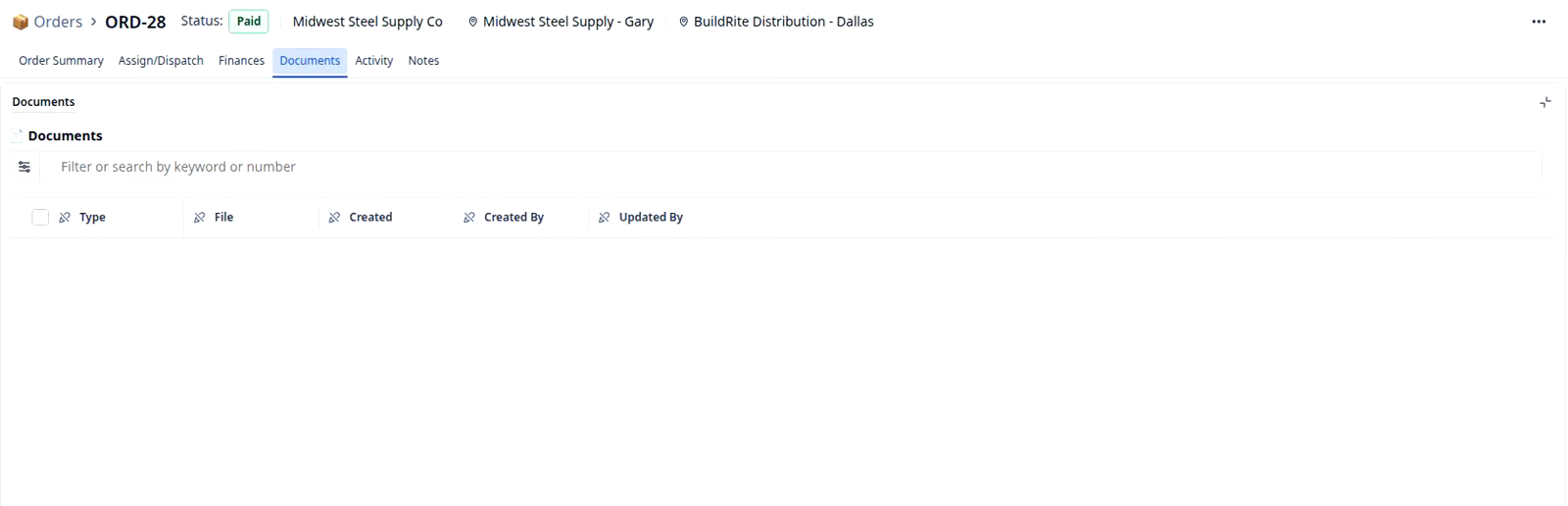
Take an order, for example ORD-28 on the Orders board. The paperwork for that load, the bill of lading the shipper signs, the proof of delivery from the dock, belongs on its record page under the Documents tab, one row per file. Some of those files a person uploads; others Rose Rocket prints from the order’s own fields. Either way the file sits on the record it is about, so nobody hunts an inbox for the paperwork on a load. A new order starts with the tab empty, as ORD-28 still is: a document is added, never assumed.
Uploaded or generated
A file lands on a record in one of two ways. An uploaded document is exactly what someone attached: a photo of a signed delivery receipt, a customer’s own PDF, a scan from the shipper. A generated document is one Rose Rocket prints for you from a template, filling in the record’s fields where the template asks for them, so the bill of lading shows the same customer, stops and pieces the order carries and nobody retypes them. Add a field to the Order object, as in customize the Order object, and the template can print that too.
Three layers behind one file
Behind a generated document sit three things that are easy to mix up.
| Layer | What it is | Who sets it | Where you meet it |
|---|---|---|---|
| Document type | The kind of file: bill of lading, rate confirmation, proof of delivery, invoice | Rose Rocket provides the list; the person uploading picks one, a template carries its own | The Type column of the Documents tab |
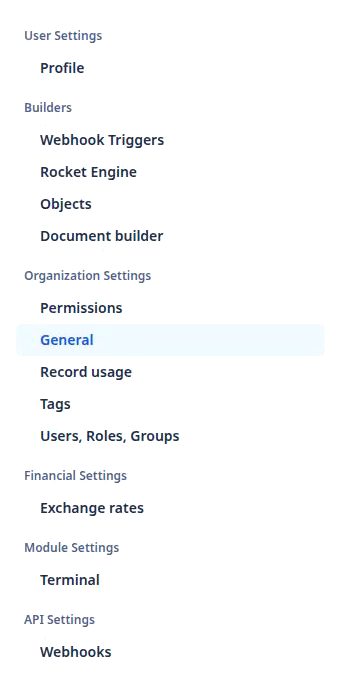
| Template | The layout a generated file is printed from, with the record’s fields where the values go | A builder, in Settings › Builders › Document builder | Document builder, one entry per template |
| Generated file | One PDF, printed from the template for one record | Rose Rocket, filled from that record when the file is generated | A row of the Documents tab, in the File column |
Change the template and every file generated from it afterwards prints the new layout; the record and its type are untouched.
One record, its own paperwork
A document belongs to the record it is about, and only that record’s Documents tab lists it. Attaching one changes nothing else on the record: a proof of delivery added to an order leaves its Status, rate and stops as they were. That is why a rule that freezes an invoiced order, such as protect invoiced orders, still lets dispatch add the paperwork afterwards. Who sees the tab follows the record page: detail view permissions decide which roles get it, so a driver can open an order and see the next stop and the documents and nothing about margin.
Builders say a document template prints a document of one document type for one record; the row on the Documents tab is the document.
Where you meet it in Rose Rocket
- Documents tab on a record page (for example, ORD-28) → the files attached to that one record, one row each, under Type, File, Created, Created By and Updated By, with a filter box above → empty on a new order until a file is uploaded or generated.
- Settings › Builders › Document builder → the templates your generated files are printed from → change the layout once and every BOL or invoice printed after that follows it.
- Object Builder (Settings › Objects, for example Order) → the fields a template can print → a field added once in Object Builder can appear on the paperwork.
Go deeper
- Record: the thing a document is attached to
- Object: the fields a template prints
- Object Builder: add a field once, print it on the paperwork
- Protect invoiced orders: freeze the order, keep adding documents