Button trigger: run a Rocket Engine workflow in one click
A Button field runs a Rocket Engine workflow on the record it sits on. Set up both ends, follow each run in Notifications, and know who can press it.
On this page3 sections
What it does
Once you know how a workflow runs, the button trigger is the start a person owns. Most rules wake on a save, but some work waits for someone to decide: the order delivered at noon, and billing invoices it only once the POD and the detention charge are in. A button on the order builds the invoice and its lines in one click, when billing says it is time.
Two settings make the pair, one at each end.
| Setting | Where it lives | What it does | For example |
|---|---|---|---|
| User triggerable › Allow this workflow to be triggered from a button | The workflow’s Settings tab in Rocket Engine | Lets a button start the workflow. It is off until you turn it on. | On for Generate invoice + lines for one Order |
| Workflow | The Button field’s form in Object Builder | Names the workflow the button runs, on the record the button sits on. | Order’s Create Invoice button names Generate invoice + lines for one Order |
| Button style and Button placement | The same form | How the button looks: Primary or the destructive variant for an action that is hard to undo, where it sits, and whether it keeps its field border. | Primary, Centered (default) |
The toggle adds a start; it does not replace one. For example, Generate invoice + lines for one Order still runs on its own when an order’s status flips to delivered, and also the moment someone clicks Create Invoice. Its trigger is untouched.
The same pair covers an Approve button on a quote, a Send reminder button on an order whose paperwork is late, or a Sync to ERP button on an invoice.
What the person who clicked sees
Billing should not have to guess whether the invoice got built. Clicking a button that runs a workflow opens a card in Notifications, the bell at the top of the screen. The card follows the run and says how it ended: succeeded, partly succeeded, failed or cancelled. Before, a success message showed before anything had run. Board toolbar buttons and bulk actions open the same card.
Two controls on the workflow shape what that person sees. Show activity card for workflow runs, under Activity card on the Settings tab, turns the card on or off for that one workflow. Show toast is an action you add to the workflow: it shows a Message to the person who started the run, as a success, error or info Variant (info unless you pick one), and the run carries on. For example, a success toast: “Invoice created.”
How you set it up
- Click Settings in the left nav, then Rocket Engine. Use Search workflows to open the workflow, for example Generate invoice + lines for one Order.
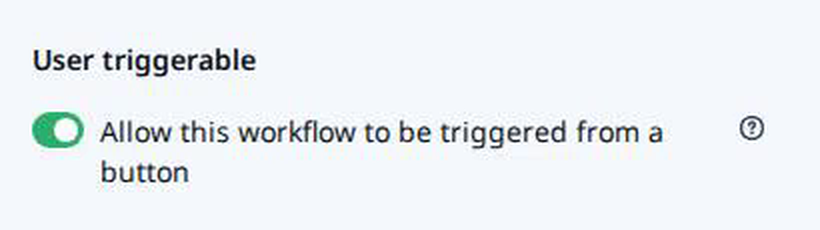
- Open the Settings tab. Under User triggerable, turn on Allow this workflow to be triggered from a button. Leave Show activity card for workflow runs on, so whoever clicks sees how the run ended. Click Save changes.
- Back in Settings, click Objects, then the object the button belongs on, for example Order. It opens in Object Builder.
- Open the Button field: type “Button” in the field search, hover the field, for example Create Invoice, and click Edit. To make a new one, create a custom field with Field type Button; field types covers the rest of that form.
- Under Workflow, pick the workflow. The hint reads “Pick the workflow that should run when a user clicks this button.”
- Set Button style and Button placement, then save the field. Every order now carries the button, so billing builds the invoice from the order instead of retyping its charges.
What to watch for
- The list offers only workflows that allow a button. If the workflow is missing under Workflow, its User triggerable toggle is off. Turn the toggle off later and every button that names the workflow stops running it.
- Anyone who can see the record can press it. The form says so: “Buttons execute with read-level permissions. Any user who can view the record can trigger this workflow.” To keep a button from a role, take the field away from that role under Settings › Roles, or have the workflow check the record before it acts.
- A second click runs it again. Write the workflow so a repeat does no harm. For example, Generate invoice + lines for one Order skips an order that already has an invoice. Protect invoiced orders shows a Block save rule guarding the same way.
- The page does not refresh itself. Even after the card says the run succeeded, the record page shows what it showed before. Reload it to see the new invoice.
- A toast reaches only the person who started the run. When Generate invoice + lines for one Order runs on its own after delivery, nobody clicked, so nobody sees its toast. A run shows one toast at most, child workflows included. To tell a team, use Send notification, whose Toast channel reaches the users you name.
- A button holds no value. No formula can use it and no board can filter or sort on it. To record who pressed it and when, have the workflow set a Date or a Toggle.