What is a widget in Rose Rocket? One panel, one job
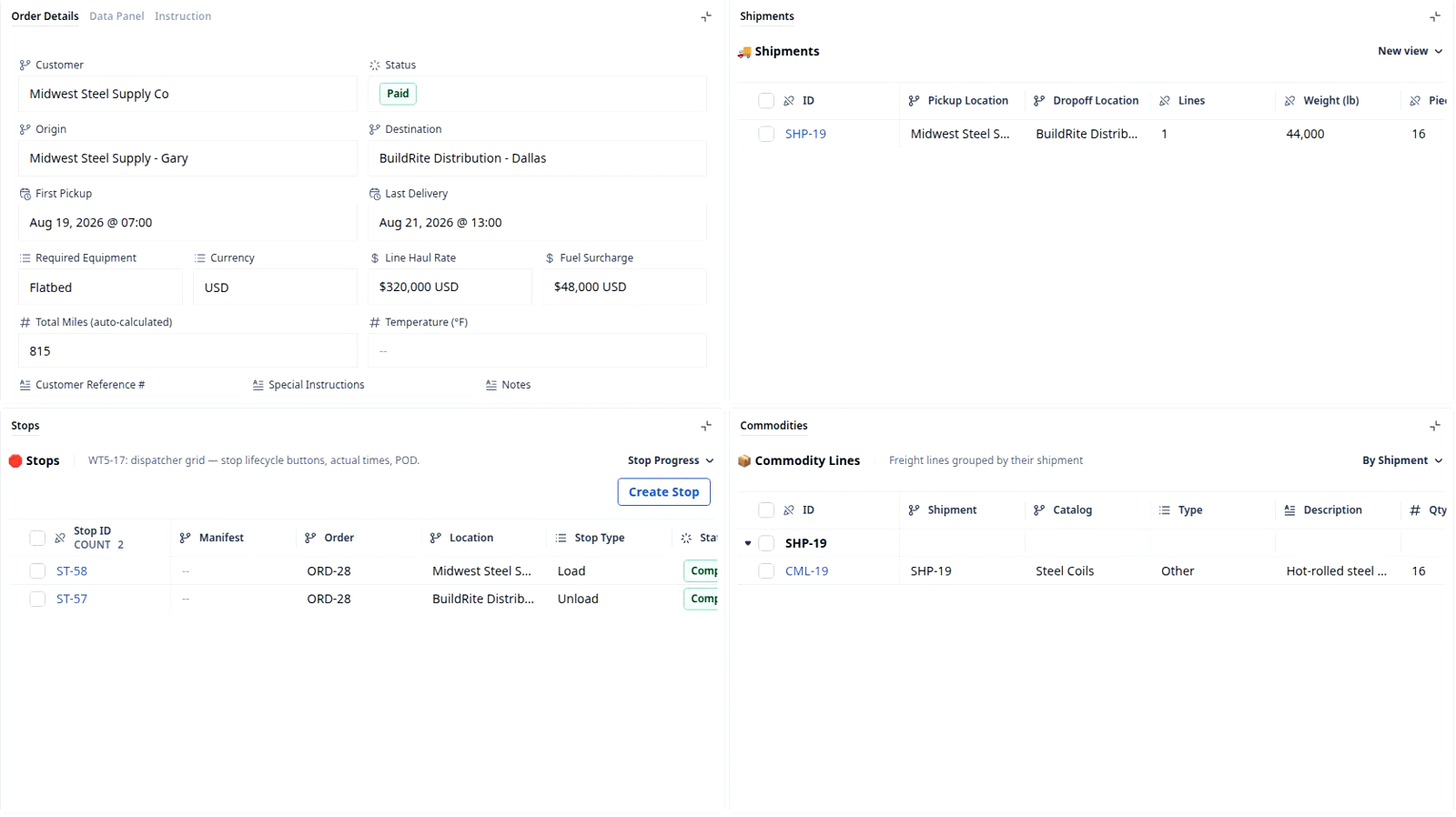
A widget is one panel on a record page with one job: a short form, a map, the documents or a list of related records, for example Shipments on ORD-28.
On this page3 sections
What it is
A widget is a panel on a record page that does one job: shows a few fields as a form, a map, the documents, or a list of related records.
Open an order’s record page, for example ORD-28, and it is not one long form but a set of panels: one holds the order’s own fields, filled in; beside it, one lists the shipments that belong to the order; below, one lists its stops and one its freight lines. Each panel is a widget. It knows which record you have open and shows only that record’s slice of one thing, so the whole record fits on one page and every panel stays small enough to read at a glance.
A form of the record’s own fields
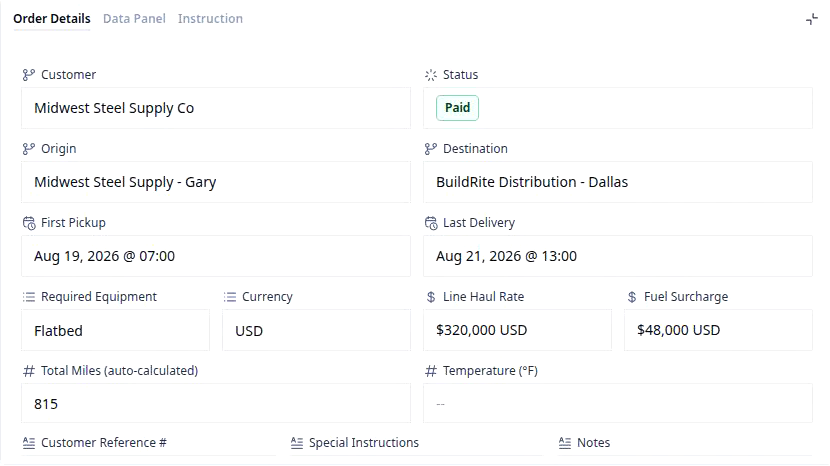
The most common widget is a form: a handful of the record’s fields with their values. It shows the record itself, not a copy: type into a field and the record changes, and the board that lists it shows the new value in that column. Widgets can also share one spot as tabs, so a panel offers more than one view of the record. On an order, for example ORD-28, the Order Details widget shows Customer, Status, Origin, Destination, the pickup and delivery times and the rates, with Data Panel and Instruction as tabs beside it.
A list of related records
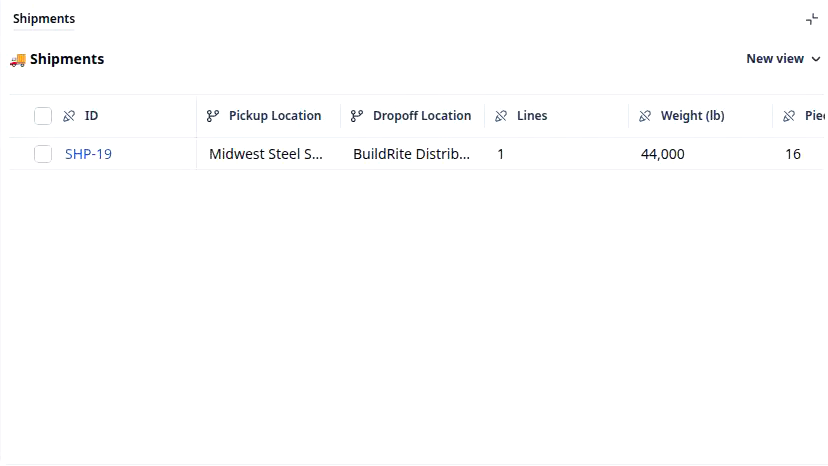
A second kind of widget is a small board scoped to the record you have open. It lists only the records that point at this one, under its own columns, with its own views and, where it makes sense, its own create button. The rows are the same records the company-wide board lists, and each row is a link that opens that record. On an order, for example ORD-28, the Shipments widget lists one shipment, SHP-19, under a New view control of its own, while the Stops widget lists two stops beside a Create Stop button.
Two kinds of custom widget

A form widget does one of two jobs, and its fields tell you which: an edit form shows a record that already exists, a workflow form shows fields for one that does not exist yet.
| Kind | What it shows | What happens when you fill it |
|---|---|---|
| Edit form | Fields of the record you have open, filled in, for example Order Details on ORD-28 | The change is saved on that record |
| Workflow form | Blank fields for a new thing, for example Add Shipment on the Activity tab of ORD-28 | The widget does the job it is named for: a new shipment on this order |
Which widgets you see
Not everyone sees the same widgets on a record page. Which panels appear, and whether a form can be edited or only read, is set per role by detail view permissions: dispatch can get the stops and the map without the rate and margin widgets, finance the rates. The record is one and the same; only its widgets change with who opened it.
Builders call each panel a widget, and the word is on screen: the Activity tab carries a Widgets button. The standard ones arrive with the object, whose fields are defined in Object Builder; custom ones are built in Widget Builder and placed on the record page.
Where you meet it in Rose Rocket
- Record page (for example, ORD-28) → Order Summary opens on four panels: the Order Details form, Shipments, Stops and Commodities → each is a widget with one job.
- Shipments widget on a record page (for example, SHP-19 on ORD-28) → a small board with its own New view → the related records, without leaving the order.
- Activity tab (on the same record page) → below the history, the Add Shipment form → a workflow form: blank fields for a shipment that does not exist yet.
Go deeper
- Record: the page a widget sits on
- Field: what a form widget shows
- Detail view permissions: which widgets each role sees
- Object Builder: the fields the widgets read