Detail view permissions: what each role sees on a record
Detail view permissions set, role by role, which fields a record page shows, which it lets you edit and which widgets appear, so one order reads two ways.
On this page3 sections
What it does
Once you know what a permission is and what a role is, detail view permissions are the ones that shape the record page: which fields a role sees on it, which it may change, and which widgets it gets. The detail view builders lay the page out once for everyone; these permissions decide how much of that layout each role opens.
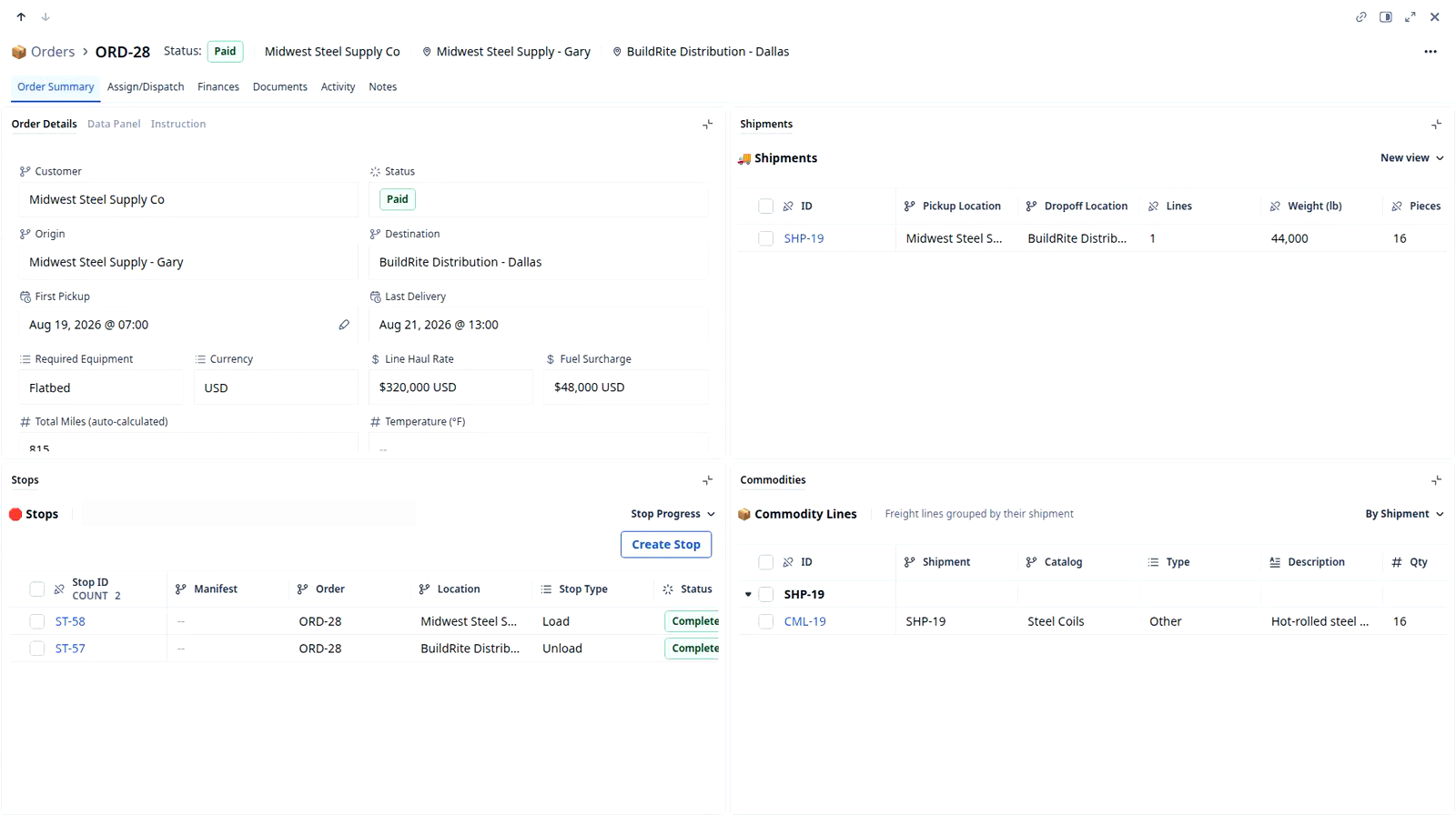
For example, one order such as ORD-28 opens for dispatch as the Order Details form with the customer, the stops and Required Equipment at hand, and for finance as the same order with Line Haul Rate, Fuel Surcharge and the invoice fields in reach and the trailer type a scroll away. Both open the same record. There is no second form and no duplicate Orders board to keep in step.
A field carries one Access Type per role, and the Data access table on a role’s Order page shows three values.
| Access Type | What the role gets | For example, on the demo org’s Admin role |
|---|---|---|
| Edit | The field is on the record page with its value, and the person can change it | Customer, Status and most of the Order fields |
| Read only | The field shows its value and refuses an edit | Commodity Summary, Origin State, Dest City |
| No Access | The field is left out of the record page for that role, and out of the board’s columns | External Id, Created By Full Name, Updated By Full Name |
Widgets are set apart from fields. Each widget on a record page carries a checkbox per role in the Widget Sequence Editor, so a widget such as Enter Charges can be on for finance and off for dispatch without touching a single field.
How you set it up
- Click Settings in the left nav, then Users, Roles, Groups. Choose the Roles tab and click the role’s name, for example Admin.
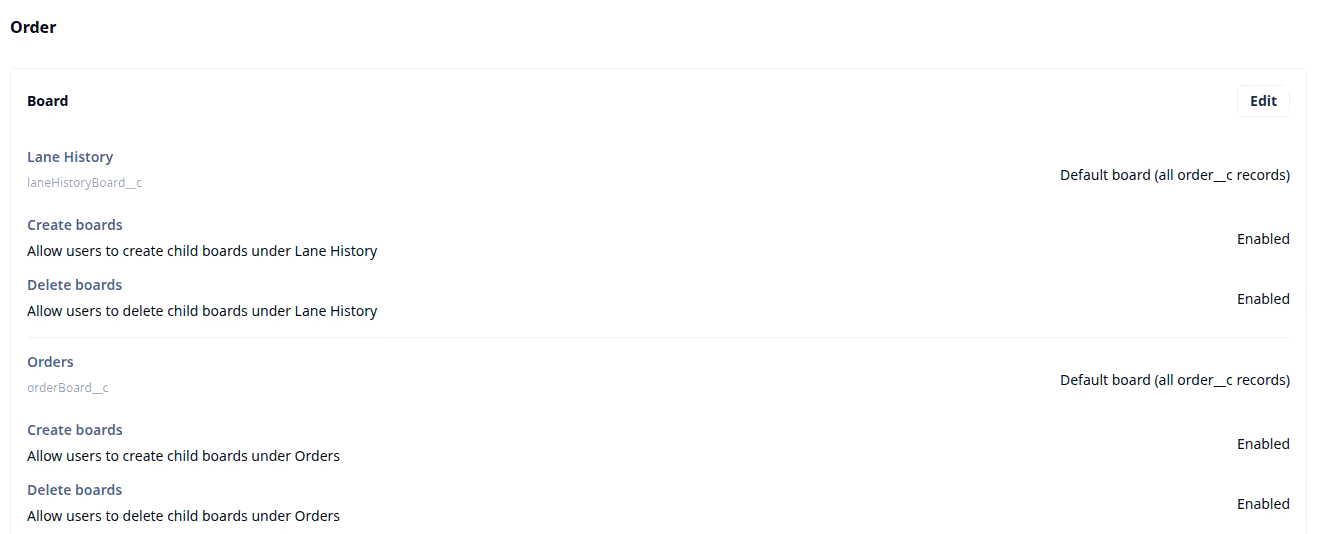
- Under Permissions, choose the kind of record, for example Order. The page holds three cards, Board, Record and Data, each with its own Edit button. The first two decide which boards open and whether records can be created or deleted; the record page is the third.
- Scroll to the Data card. Data access lists every field of the object, one row each, with a search box to find one by name and an Access Type column reading what this role has today.
- Click Edit on the Data card to change a field’s Access Type. The demo take stopped before that click, so this page stops with it: after you save, read the Access Type column again and open a record as someone in that role.
- For a widget, open the Widget Sequence Editor for the same object, select the widget, and tick the roles that may see it. That screen was not open on the demo org, so this page names it and no more.
Give dispatch, finance and drivers their own order view walks one order through three roles with these settings.
What to watch for
- It is by role, not by person. A change on the Data card reaches everyone holding that role at once. To show one dispatcher the rate and not the others, you need a role that only they hold; there is no per-person switch.
- The board comes first. A role that cannot open the Orders board never reaches an order’s page, whatever its Access Type on every field. Check the Board card before you reason about the Data card.
- Read Admin’s table too. Admin is a role like any other, with its own Data access table. On the demo org it reads No Access on three system fields, External Id, Created By Full Name and Updated By Full Name, so do not assume a role sees everything without reading its rows.
- A hidden field is left out, not blanked. With No Access the field is missing from the record page for that role and the section it sat in is shorter; nothing on the page says a field was withheld. Someone who asks why a colleague’s order has a Fuel Surcharge and theirs does not is looking at this table.
- The field still exists. No Access hides a field from one role. It stays on the object, in the Data access table for every role, and in the values every other role sees; hiding it here is not deleting it there.