Object Builder: shape every Rose Rocket object without code
Object Builder is where an admin adds a field to an object once, picks its type, and has it on every record, board column, filter and workflow, no code.
On this page3 sections
- Before and after
- What it does
- Add a Required Equipment field to the Order object
- Pick the type that fits the data
- Connect an order to its trailer
- Look a customer contact up through the connection
- Compute margin with a formula
- Lay the object out for your team and for partners
- Delete a field safely
- One Order object, every screen
- Availability
Before and after
Before. The order form arrived with the software, and the loads did not fit it. Dispatch needs the trailer type before the driver is assigned, so somebody types “flatbed” into the notes box, where the board cannot filter on it and the rate confirmation never sees it. Finance wants the margin on every load, so a side spreadsheet is exported each Friday and rebuilt each Monday. The customer’s PO number has to be on the invoice, so a change request goes to the vendor and the answer comes back in a quarter. Three fields, three workarounds, none of them on the order.
After. An administrator opens the Order object in Object Builder, adds each field once, and it is on the record, the board, the filters and the workflows that same afternoon.
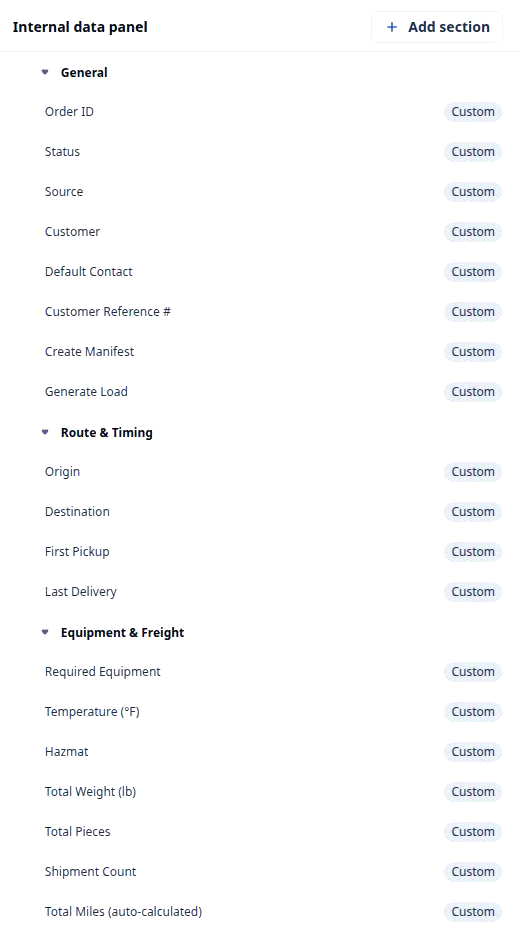
If the nouns are new, what an object is covers the type behind every board and what a field is covers the slots on it; this page is about the builder that shapes them. The clip above is one pass through it. Object Builder opens on Order with Available fields down the middle, a Custom pill on every field your team added, and the Internal data panel on the right, where General, Route & Timing and Equipment & Freight hold the fields in the order a dispatcher reads them. Create custom field swaps that panel for a form, and the form changes shape with the Field type chosen: Select asks for options, Formula opens the Set formula editor. Nothing in the clip is saved.
What it does
Every board, record page, filter, document and rule in your organization reads one object definition, and Object Builder is the only place it is edited. The sections below are what an administrator actually does in it, each with the trucking example the clip or the demo organization shows.
Add a Required Equipment field to the Order object
The marquee move is the whole clip: open the object, click Create custom field, name the field, pick its type, place it in a section, save. For example: “Add Required Equipment as a Select with Flatbed and Step Deck, put it under Equipment & Freight, and every order form asks for it from the next load on.” What stays automatic: the field is on every order at once, a column any Orders board can show, a filter every view can use, a value every rule can test. What stays curated: the name, the type, the section, and which roles may see it.
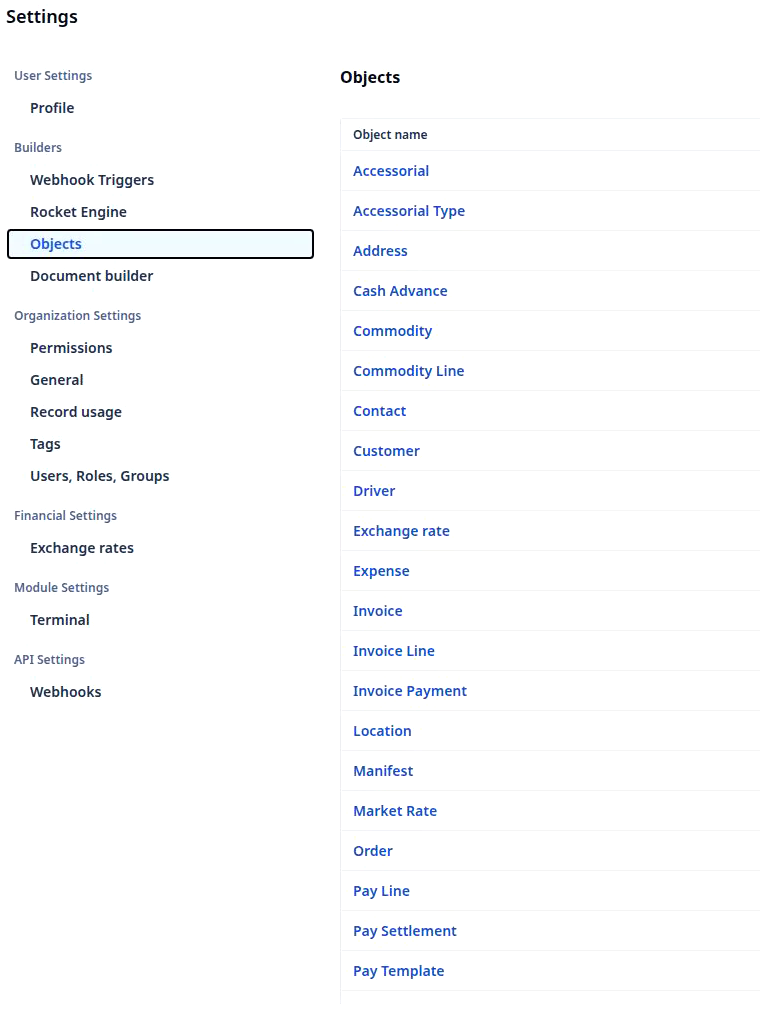
- Click Settings in the left nav. Under Builders, click Objects. The Object name table lists every object the organization runs on, Accessorial through Pay Template, one row per record type.
- Click Order. Object Builder opens with the object’s name in the header, Available fields in the middle and the Internal data panel on the right.
- Type a word in Search for a field or type to narrow the list. Fields your team added wear a Custom pill; fields already placed in a section read Added.
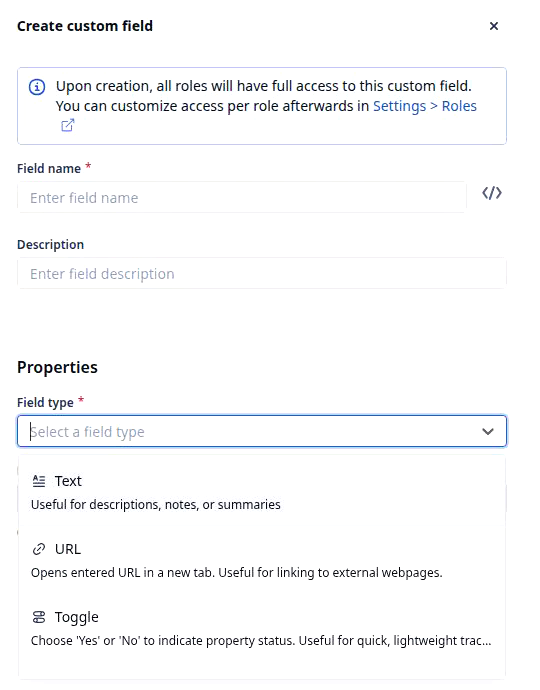
- Click Create custom field. Set Field name, glance at the key behind the code icon beside it, choose a Field type and fill in what the type asks for, then click Create.
- Drag the new field into a section of the data panel, or add one with Add section, and click Save changes.
Pick the type that fits the data
A field’s type decides how it is entered, filtered, totalled and shown, so the type is the real decision. The Field type list in the clip opens on Text, URL and Toggle, scrolls through Address, Money and Select, and ends on Lookup, Formula and Button; Number, Date, Status, Connection and Measurement sit in between, and what each one holds is on what a field is. For example: “Make Temperature (°F) a Number so a Reefer lanes view can filter on it, and make Hazmat a Toggle so it is a yes or a no.” What stays automatic: the form shows only the settings the type needs, a Select its option list, a Button the workflow it runs. What stays curated: the type, chosen once; a field that needs a different type later is a new field, not an edit.
Connect an order to its trailer
A Connection field points at records of another object, one or many, so the order carries the actual record and not a retyped name. The Order object in the clip already does this: its Customer row reads Bill-to party, a connection to the Customer object. For example: “Add a Trailer connection to the Order object, and dispatch picks the unit from the Trailers list instead of typing a plate number into the notes.” What stays automatic: the picker searches the connected object’s records and the order shows a link to the one chosen. What stays curated: which object the field points at, whether an order takes one or many, and, where you switch it on, a picker filter so only in-service trailers are offered.
Look a customer contact up through the connection
A Lookup shows a field from a connected record without copying it, so it is never stale. The Order object’s Default Contact row in the clip is one, described on screen as a read-only lookup of the customer’s default contact. For example: “Show the customer’s dispatch phone on every order through the Customer connection; change it once on the customer and every open order reads the new number.” What stays automatic: the value follows the connected record and is read-only on the order. What stays curated: the connection it reads through and the field it shows.
Compute margin with a formula
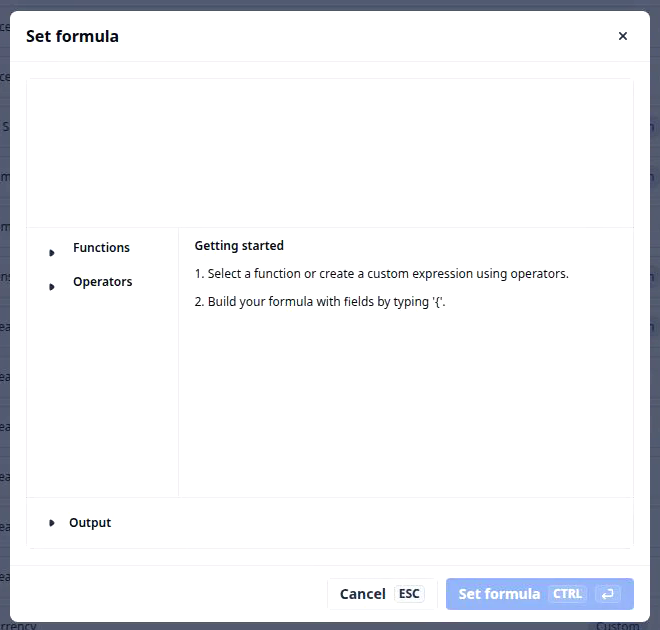
A Formula field holds a value nobody types: an expression over other fields on the record, evaluated every time the record is read. In the clip, picking Formula shows No formula added and a Set formula button, and the editor opens with Functions, Operators, a Getting started note and an Output panel that reports the result’s type. For example: “Margin equals Revenue minus Cost, in dollars, on every order, refreshed the moment either input changes.” What stays automatic: the result on every record, the refresh, the type check in the editor, and the field’s availability to boards and charts like any Money field. What stays curated: the expression, written once. How the expression language works is on what a formula field is.
Lay the object out for your team and for partners
The data panel keeps the layout of the record page: which fields sit in which section and in what order, once per object, read by every record of it. Internal Views is the layout your own people see; External Views is the read-only layout a partner opens from a shared link, and on the Order object it shows the order’s ID and status until you add to it. For example: “Internal shows the rate, the fuel surcharge and the margin; External shows the order number, the status, the stops and the delivery window, and nothing with a dollar sign.” What stays automatic: both layouts read the same order, so a status change is on the partner’s page at once. What stays curated: the sections and which fields each layout carries. Which of your own roles sees which section is its own page, detail view permissions.
Delete a field safely
Deleting a custom field checks what depends on it before anything is removed. For example: “Retire the old Trailer Type text field after the Trailer connection replaces it; if the late-ETA rule still reads it, the dialog names that rule before you confirm.” What stays automatic: the check walks every workflow for references to the field, including references through connections, and lists the dependents in the confirmation. What stays curated: updating those workflows first, or hiding the field from the layout instead, which removes it from the record page and keeps the data.
One Order object, every screen
Everything above edits one definition, and everything else in the product reads it. Required Equipment is a row under Equipment & Freight in the clip; on the demo organization the same field is a filled value on ORD-28’s order form and a column on the Orders board, with no second copy anywhere. Add a field here and it is a candidate column and filter on every board view, a slot in every record’s layout, a placeholder a document template can print, and a value a rule can test, for example has not changed on an invoiced order’s carrier. It compounds the other way too: a field deleted here is checked against every rule first, because they all read the same key. One object, one record type, one place to change it.
Availability
Object Builder is admin work. The Objects row under Settings › Builders appears for administrators in every organization, with no flag to wait on; other roles see the fields it creates but never the builder. It works on the objects the platform ships and on the ones your organization added, and the fields you already run on are already in it: on the demo organization every field the Orders board and ORD-28 use is a row in the Order object with a Custom pill, so there is nothing to recreate and no field changes its key. Base fields the platform depends on can be placed and hidden but not deleted. When the first field is the trailer type, customize the Order object walks that build through, field by field.