What is a board view in Rose Rocket? One board, many tabs
A view is a saved tab on a board with its own filters, columns, sort, grouping and layout, so dispatch and finance see the same records different ways.
On this page3 sections
What it is
A view is a saved tab on a board with its own filters, columns, sort, grouping and layout, so dispatch and finance can look at the same records different ways.
Take a board, for example the Orders board, and one of its tabs, for example the Operations view: the same orders, narrowed to the loads in execution, in the columns dispatch reads. Finance opens another tab, for example Ready to Invoice, for delivered loads and money columns. One board holds every record of its object; a view is one saved way of looking at them.
What a view remembers
A view saves how you look at a board, never the records. Configure on a view, for example Operations, opens everything it remembers in one flyout, Configure View:
- Filter: the conditions that pick which records show
- Columns: which fields are shown, hidden or pinned, and their order
- Sort by: the order of the rows
- Group by: the field the rows are bundled under
- Calculations: those applied to the view
- Layout: which of four ways the view is drawn
- View name and View description: shown on the tab and the board heading
Any change under Configure is a draft on your screen only. The tab shows a warning triangle, “There are unsaved changes to this view”, until you choose Save to view › Save to current view, which updates this tab for everyone, or Save to new view, which adds a new tab with your changes and leaves this one alone. Reset discards the draft.
What a view can be
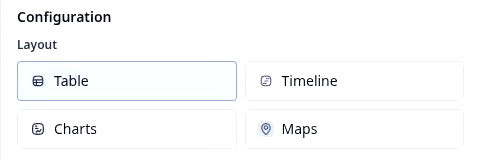
The Layout row offers four cards; your pick changes how the view is drawn, not which records it holds.
| Layout | What the view draws | Like | For example |
|---|---|---|---|
| Table | One row per record, one column per field | A spreadsheet tab, filter already applied | The Operations view: three loads, ten columns |
| Timeline | One row per record along a date axis you can zoom from hours to months, with a Today button; a record sits on the axis between the two date fields you pick under Timeline Settings | A wall calendar, one line per load | A broker’s Planning view: Loads needing to be planned |
| Charts | Panels that count the view’s records, each with its own Chart type and Group by | A pivot chart that redraws itself | A Booked this week view: four panels, a donut by Customer |
The picker also shows a Maps card; no demo board uses it yet, so it is not described here.
The filter applies in every layout, so a chart on a filtered view is a live report.
A view never changes records
Switching tabs, filtering, hiding a column or regrouping touches no order. A view narrowed to three loads still sits on a board of five; the other two are only not shown. A view shapes what a tab shows, not who may open it: that comes from detail view permissions and from Security filters on a shared board.
Builders say board view for the tab and default view for the one a board opens on.
Where you meet it in Rose Rocket
- View tabs on a board (for example, Operations on the Orders board) → the same orders narrowed to the loads in execution → one board, several ways to look at it.
- Configure (for example, on the Operations view) → Configure View opens beside the board → everything the view remembers.
- Save to view (for example, after hiding a column) → Save to current view or Save to new view → your change becomes a view the team opens.
Go deeper
- What is a board: the table a view sits on
- What is a record: the rows a view shows or hides
- Board views: add, configure and save a view
- Give dispatch, finance, and drivers their own order view: the record page by role
- Give a customer their own live orders board: a view on a shared copy