What is an object in Rose Rocket? One type, one field list
An object is a type of thing your business tracks, such as Order or Customer: one list of fields every board, record page, workflow and document reads.
On this page3 sections
What it is
An object is a type of thing your business tracks, such as Order, Customer or Trailer, defined once as a named set of fields so every board, record page, workflow and document reads the same list.
Take one object, for example the Order object. Every order has the same things to say about it: which customer, where it picks up, where it delivers, what equipment it needs. The Order object is that list, written down once. An order such as ORD-28 is one order; Order is the type every order is a record of. When someone says “add a field to orders”, they mean the object, and the change lands on every order at once.
The objects an org tracks
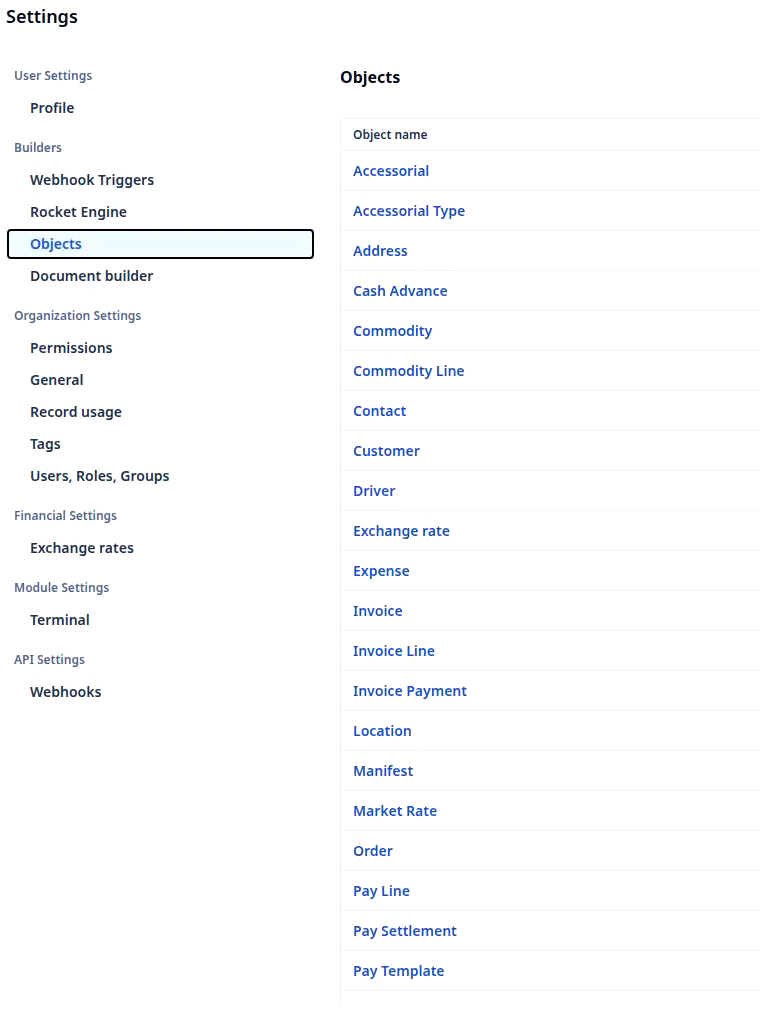
Settings › Builders › Objects lists every object in your organization, one row per type of thing. On this demo org the rows on screen run from Accessorial through Customer, Driver, Invoice, Manifest and Order to Pay Template, and the list carries on below the fold to Quote, Shipment, Stop, Tractor and Trailer. Some rows came with the platform and some your org added; the list does not tell them apart, and each opens the same way, as a list of fields.
The field list is the object
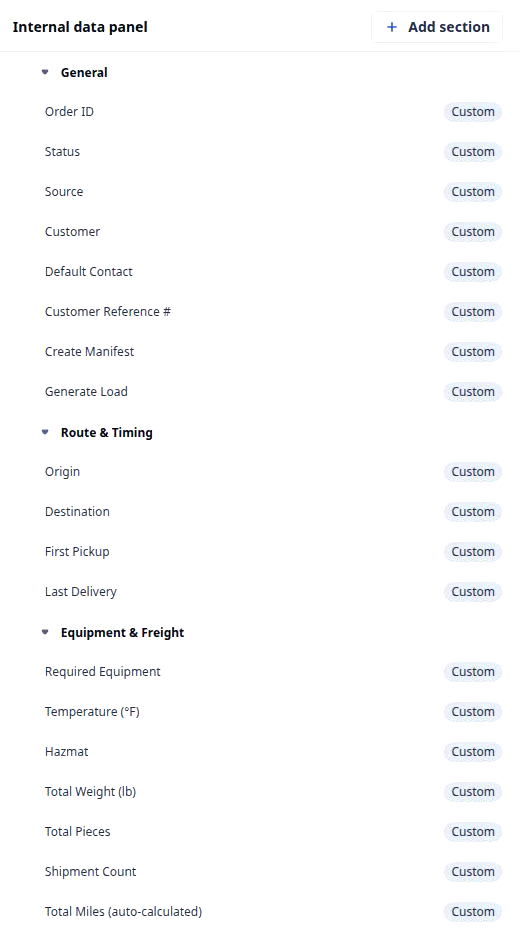
Open an object, for example Order, and Object Builder shows its fields. Available fields on the left lists every field on the object, with Create custom field above it and a Custom pill on each field your team added. The Internal data panel arranges the same fields into sections. On this org, General holds Order ID, Status, Source, Customer, Default Contact and Customer Reference #; Route & Timing holds Origin, Destination, First Pickup and Last Delivery; Equipment & Freight holds Required Equipment, Temperature (°F), Hazmat and the weight and mileage fields. That list is the object. Change it here, in Object Builder, and there is no second copy behind the board or the record page to keep in step.
One object, many records
An object is the type; a record is one thing of that type. There is one Order object and as many order records as loads, for example ORD-32 to ORD-28 on the Orders board of the demo org, each a row, each a filled-in copy of the same field list. The object decides what an order can say; each record says it for one load. What one record holds, and how records connect, is the subject of What is a record.
What reads the object
Four kinds of screen read the object, and none keeps its own copy of the fields. A board lists records of one object, so the Orders board’s columns ID, Status, Customer, Origin, Destination and Required Equipment are Order fields (the board’s ID is the panel’s Order ID). A record page shows the same fields filled in for one order. A workflow condition names a field, for example Status in protect invoiced orders. A document template from Document builder fills from the same fields. Add one field, as in customize the Order object, and every order screen gains it.
Builders address an object by its key: the objects the platform ships keep plain keys, the ones an org adds end in __c, and the Orders board on this demo org sits on a custom Order object.
Where you meet it in Rose Rocket
- Objects list (Settings › Builders › Objects; for example, the Order row) → every object in your organization, one row each → the kinds of thing this org tracks.
- Object Builder (for example, Object Builder › Order) → Available fields, Custom on the fields your team added, the Internal data panel sections → this list is the object.
- Orders board (Operations › Orders) → the columns ID, Status, Customer, Origin, Destination and Required Equipment over one row per record, for example ORD-32 to ORD-28 → a board reads the object’s fields.
Go deeper
- What is a record: one thing of a type
- Object Builder: the builder that shapes an object
- Platform basics: objects, records, boards, workflows
- Customize the Order object: a field added once, on every order