What is a board in Rose Rocket? One table per object
A board is the table of every record of one object, one row per record and one column per field, and it is what every entry in the left nav opens.
On this page3 sections
What it is
A board is the table of every record of one object, one row per record and one column per field, and it is what every entry in the left nav opens.
Take a board, for example the Orders board. It holds every order your organization has in one table. Each row is one order, for example ORD-28; each column is one field of the Order object, for example Status or Customer. Click Orders under Operations in the left nav and this table is where you land. A board is not a report or a dashboard about the orders; it is the orders themselves, laid out so you can scan them, filter them and open one.
One row per record, one column per field
A row is one record. On the Orders board, for example, five rows are five orders, ORD-32 to ORD-28, and the count at the foot of the board counts records. A column is one field, the same field on every record in the column: Status reads Invoiced on one order and In Transit on the next because each row answers the same question for its own record. Click a row and the record page opens with every field of that one record, which is the subject of What is a record. Filtering, sorting, hiding a column or switching views changes what you see on the board, never the records themselves.
The columns are the object’s fields, shown or hidden
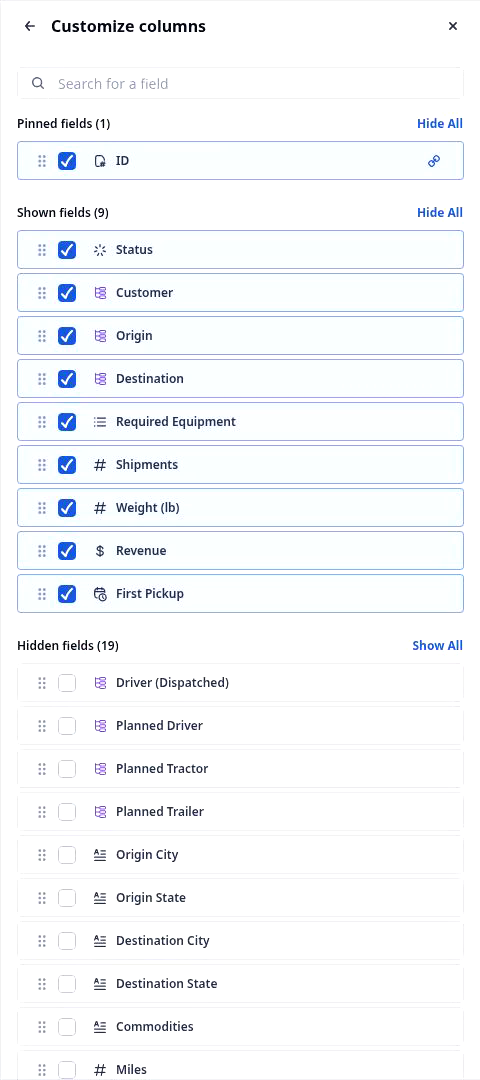
A board can only show a field its object has, and it can show any of them.
- Open the view’s Configure.
- Click Columns (for example, Columns 10 shown).
- In Customize columns, tick or untick a field; pinned, shown and hidden fields are the object’s fields.
On the Orders board’s Operations view, for example, ten fields are shown and nineteen more are hidden, waiting. Hiding a column takes the field off this view only; the field and its values stay on every record. Add a field to the Order object in Object Builder and it joins this list, ready to be shown on any view of the board.
Views: tabs on a board

The tabs across the top of a board are views: the same board, each with its own filter, sort, grouping and set of columns, saved for one job. The first tab is the default view, the one the board opens on. The Orders board’s Operations view, for example, keeps only the orders in execution, three of the five, with a status filter shown above the rows. Switching a tab never adds or removes a record; it changes which rows and columns you are looking at. How to add, configure and save a view is on Board views.
Every left-nav entry opens a board
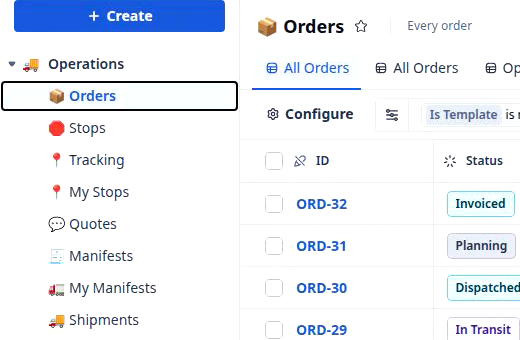
The left nav is a list of boards, grouped by the part of the business they serve. Under a group such as Operations, every entry is a board of one object: Orders is the board of the Order object, Stops the board of the Stop object, Quotes the board of the Quote object. Learning the nav is learning which objects your organization runs on, one board each. Settings, at the bottom, is the one entry that opens a settings page instead of a board.
Builders say board for the table and default view for the tab a board opens on; each board belongs to one object and is shaped in Board Builder.
Where you meet it in Rose Rocket
- Orders board (Operations › Orders) → one row per order, for example ORD-32 to ORD-28, one column per field → the table of every record of the Order object.
- View tabs (for example, Operations) → the same board filtered to the orders in execution, three of the five, pager 1 - 3 of 3 → one board, many views.
- Configure › Columns (for example, Columns 10 shown → Customize columns) → the Order object’s fields, pinned, shown or hidden → a column is a field.
Go deeper
- What is a record: one row on a board, opened
- Board views: filters, columns, sort and grouping, saved as a view
- Platform basics: objects, records, boards, workflows
- Object Builder: the fields a board can show