What is a detail view in Rose Rocket? One record, laid out
The detail view is the record page: one record's information laid out in sections and tabs, with panels for related things around it, for example ORD-28.
On this page3 sections
What it is
The detail view is the record page: one record’s information laid out in sections and tabs, with panels for related things around it.
Take an order, for example ORD-28 on the Orders board. On the board it is one row. Click the row and a page opens with that order’s heading, its Status, a form of its fields and, beside the form, panels listing the shipments and stops that belong to it. That page is its detail view. The board is the list that found the order, the record is the order itself, and the detail view is the page that lays the record out so anyone can read the whole load without leaving it. Looking at the page changes nothing; typing into a field on its form edits the record.
Sections and tabs

One record can carry more than one screen should show, so the detail view splits it into tabs, and the opening tab into sections. Every tab is the same record seen from a different side: the first holds the form with the fields most people read first, another keeps the files attached to the record, another the history of who changed what and when. Switching tabs changes what you are looking at, never the record. On an order, for example ORD-28, Order Summary opens on a General section with Customer, Origin, Destination, the pickup and delivery times and the rate, while Documents and Activity sit two tabs over.
Panels for related records
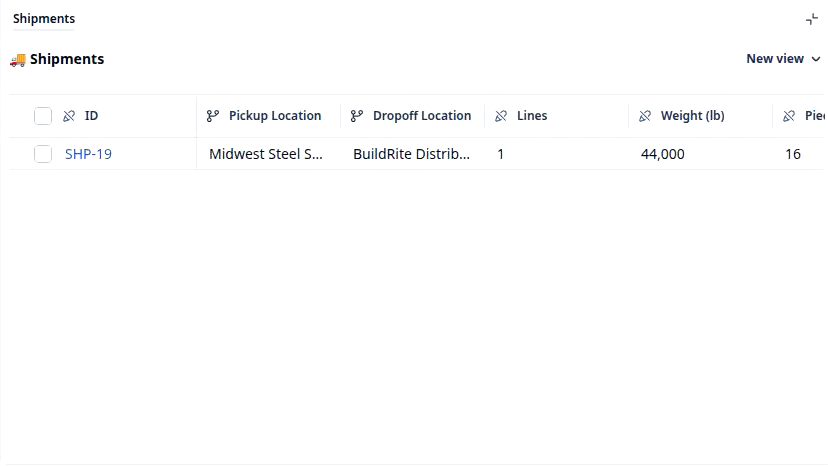
Around the form sit panels, one per kind of related record. A panel is a small board scoped to the record you have open: it lists only the records that point at this one, under their own columns, and each row is a link to that record. So the shipments, stops and commodities of a load are on the load’s page without anyone searching for them, and they are the same records the Shipments or Stops board lists for the whole company. On ORD-28, for example, the Shipments panel shows one row, SHP-19 at 44,000 lb: the shipment that belongs to this order.
One page, a different view per role
The detail view is not the same for everyone. Which sections and panels appear, and which fields can be edited, is set per role by detail view permissions: dispatch can get the stops and driver panels at the top, finance the rates and the invoice, a driver the next stop and the documents. The record underneath is one and the same; only its layout changes with who opened it. That is how dispatch, finance and drivers get their own order view without three copies of the order.
Builders call this page the detail view and shape it in two places: Object Builder, where the data panel lays out the sections and fields the form shows, and detail view permissions, where each role’s version of it is set.
Where you meet it in Rose Rocket
- Orders board (Operations › Orders) → one row per order, for example ORD-28 → click the row and its detail view opens; the row and the page are one record.
- Record page (for example, ORD-28) → the heading and Status, the tab strip, the Order Summary form and the Shipments panel beside it → everything about that one load on one page.
- Documents and Activity tabs (on the same record page) → the files attached to the record, then its history → the same record, a different slice per tab.
Go deeper
- Record: the thing the detail view lays out
- Object: where a record’s fields are defined
- Field: one piece of information on the form
- Detail view permissions: the record page by role
- Object Builder: the sections and fields the form shows
- Role-specific order views: one order, three layouts