Widget sequence editor: the steps each record walks through
The widget sequence editor sets which widgets an object's record page shows, in what order and for which roles, without changing what a widget asks.
On this page3 sections
What it does
Once you know what a widget is, the widget sequence editor decides which widgets an object’s record page walks through, in what order, and for which roles. It never builds a widget. The fields a form asks for, its title and when it counts as done are set when you build a widget in Widget Builder. A sequence only arranges widgets that already exist, so a change here moves, hides or restricts a form without touching its fields.
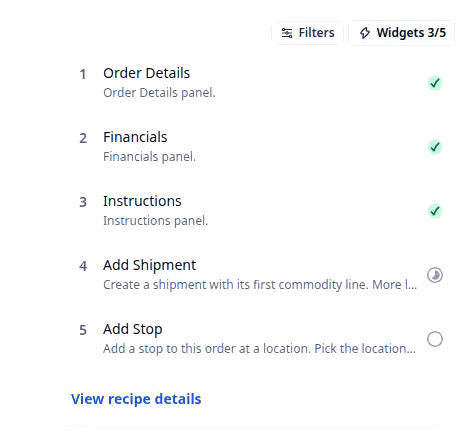
You see the result on every record of that object. On an order, for example ORD-28, the Widgets 3/5 button on the Activity tab opens the sequence as a numbered list: Order Details, Financials, Instructions, Add Shipment and Add Stop, each ticked as it is done. Move Financials below Instructions in the editor, publish, and that list reads in the new order on every order, not just this one.
The editor changes four things, and each shows on the record page.
| What you change | What the record page does | For example |
|---|---|---|
| Order | Lists the widgets in the new order | Add Stop ahead of Add Shipment, for a team that books the stops before the freight |
| Hide | Drops the widget from the list. It waits under Available widgets with its setup intact | Add Stop hidden for a fleet that only runs door to door |
| Show | Puts a widget from Available widgets back into the list | A widget your recipe ships hidden, brought in for your team |
| Widget Permissions | Shows the widget only to the roles you tick | Financials for the CSR and finance roles, left off for drivers |
How you set it up
- Click Settings in the left nav and open Widget Sequences. The settings row and the editor’s breadcrumb both read Widgets.
- Under Widget sequence details, pick the Object, for example Order. Available widgets loads on the left and the Widget sequence on the right. A sequence of your own carries the Name you give it; a new one starts as New widget sequence.
- Drag a card up or down in Widget sequence to put the steps in the order the job runs.
- To hide a widget, click the X on its card. It moves to Available widgets and nothing is deleted. Click it there to add it back.
- Select a widget in the sequence to open its Widget Permissions, and tick each role that should see and use it.
- Click Publish changes. Record pages keep the old sequence until you do, and Discard changes throws the draft away.
Give dispatch, finance and drivers their own order view walks one order through three roles, and the role ticks here are one part of it.
What to watch for
- Your sequence replaces the recipe’s, for your organization only. Your recipe ships a default sequence for each object. Publishing your own creates an override for your organization. The default stays behind it, and every other organization on the same recipe keeps its own. If your team’s list doesn’t match a colleague’s at another company, this is why.
- A missing widget may only be hidden. Some recipes ship a widget already hidden, and a widget someone hid last month sits in the same place. Check Available widgets before you build a new one to fill the gap.
- Hiding is not deleting. A hidden widget keeps its fields, its title and its permissions. Whatever it already saved stays on the record, because a form writes to the record’s own fields, not to the widget. Bring it back and it is the same widget.
- Who sees a widget is not what it asks. Widget Permissions is all or nothing per role: the role gets the whole widget or none of it. It doesn’t take fields off the form, which is Widget Builder’s job. It doesn’t decide which fields a role can see or edit either; that is detail view permissions. Unticking drivers on Financials hides the whole step from them. To show drivers only part of it, change the fields or their access, not this box.
- One panel, two jobs. The panel that shows a selected widget’s role ticks is also where + Create custom widget opens the form for building a new one. If you came for the role boxes and find field pickers instead, select a card in Widget sequence to get them back.