What is a role in Rose Rocket? What a person can see and do
A role is what a person is in your organization, such as dispatcher, CSR, driver, partner or customer, and it decides what they can see and do.
On this page3 sections
What it is
A role is what a person is in your organization, such as dispatcher, CSR, driver, partner or customer, and it decides what they can see and do.
Take the roles under Settings › Users, Roles, Groups, for example. The Roles tab lists each role your organization has with a one-line description of who it is for; on the carrier demo org those are Admin, best for account owners or power users, and Guest, best for any guest user to access limited information. Every person who logs in holds one role, and that role, not their job title, decides which boards open for them and what each record page shows.
A role decides what you see
Two people in one organization can open the same order and see different pages, because their roles differ. A role carries a set of permissions: which boards open from the left nav, which panels and fields a record page shows, whether records can be created or deleted, and whether the person may add boards of their own. On a role’s page, for example Roles › Admin, the Permissions list has one entry per kind of record. Choose Order and it spells out what that role may do with orders, for example whether it can create boards under Orders. Which panels and fields each role gets on a record page is set by detail view permissions.
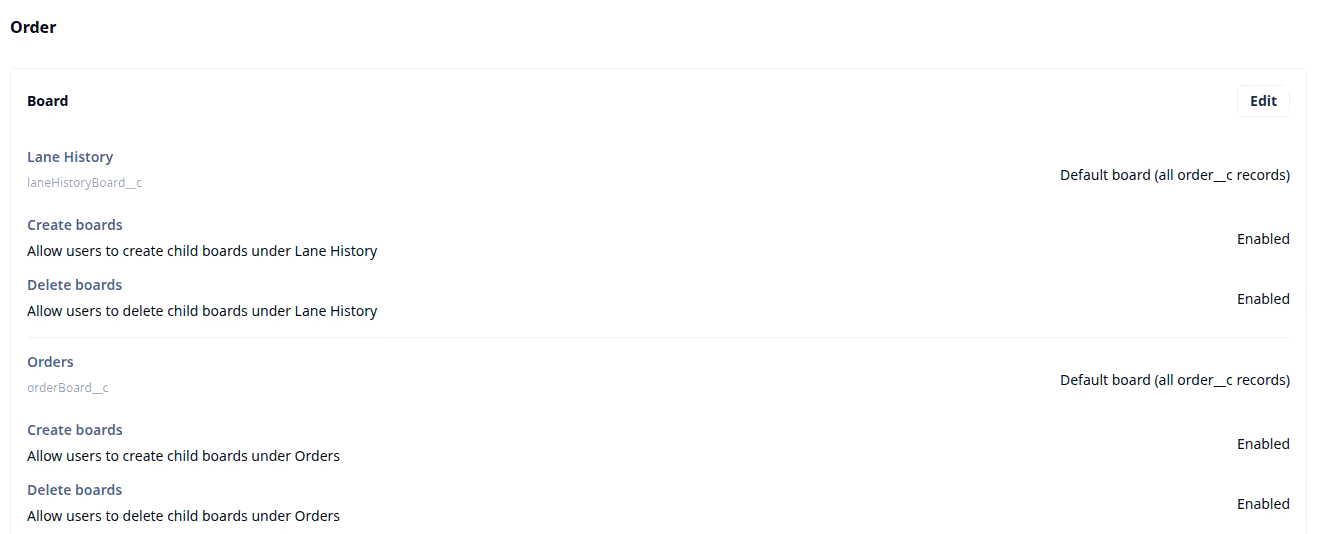
- Open Settings, then Users, Roles, Groups.
- Choose the Roles tab and click a role’s name, for example Admin.
- Under Permissions, choose the kind of record, for example Order.
You pick a role, you do not invent one
The Users tab has Invite users and the Groups tab has Create group, but the Roles tab has no button to make a new one: it lists the roles your organization has, and you choose among them. A job title is not a role. A night dispatcher and a day dispatcher hold the same role; a billing clerk and the owner of the company may hold two different ones. When you invite someone, the question is which listed role fits what they should see and do.
Under Invite by, Invite users offers Phone number as well as Email, for a person with a phone but no company email, for example a driver. You pick a listed system role in the same step, and they sign in on the Rose Rocket mobile app with that number.
One role, many people
A role is shared. The Users column on the Roles tab counts how many people hold each role, for example 1 for Admin on the carrier demo org, and the Users tab shows each person’s role beside their name. Change a person’s role and their screens change on their next page load; the records are untouched. Change what the role itself allows, and everyone holding it changes at once. You decide once, for a kind of person, not once per person.

Groups are not roles
Next to Roles sits the Groups tab. A group is a team of people, for example the one group the carrier demo org has. It lets you aim something at the team at once, for example a rule that lets a named group bypass a check, as Block Save lets named roles bypass it. Joining a group does not replace anyone’s role; a dispatcher in a group is still a dispatcher, and the role still decides the screens.
In the builder’s configuration, a role’s permission set is called a group; the Groups tab on this screen is a different thing, a team of users.
Where you meet it in Rose Rocket
- Settings › Users, Roles, Groups (for example, the Roles tab with Admin and Guest) → each role with a description and how many people hold it → the roles your organization has.
- Role page (for example, Roles › Admin) → the General rows and one Permissions entry per kind of record → what that role may do, object by object.
- The left nav (for example, on the Orders landing) → the boards your role may open → why two people in one organization see different menus.
Go deeper
- Org: the organization a role lives inside
- Board: what a role’s boards hold
- Detail view: the record page a role sees
- Detail view permissions: the panels and fields per role
- Give dispatch, finance and drivers their own order view: roles on one order
- Give a customer their own live orders board: a board shared outside your roles