Widget Builder: the forms your team fills on every record
Widget Builder is where an admin picks the fields each form on a record page asks for, the order the steps run in and the roles that see them, no code.
On this page3 sections
- Before and after
- What it does
- Build a form from the record’s own fields
- Decide when a step counts as done
- Put the steps in the order the job runs
- Hide a step your fleet never uses
- Show a step only to the roles who do it
- Make a form for a record that does not exist yet
- Pre-fill a form from the record it sits on
- Add a field once, and every form can ask for it
- Availability
Before and after
Before. The order form came with the software, and the day’s work did not fit it. The driver’s pre-trip check lived on a paper checklist in the cab, so the seal number reached the office as a photo, if it arrived at all. The rate sat in a spreadsheet beside the order, because on the form a CSR could overwrite it by accident. A shipment went onto a second form in another tab, and someone retyped the origin and weight the order already had. That is three jobs and three copies of the record, and none of them lived on the record.
After. An administrator picks the fields each form asks for, puts the steps in the order the job runs and names the roles that see each one, and every order has the new forms that afternoon.
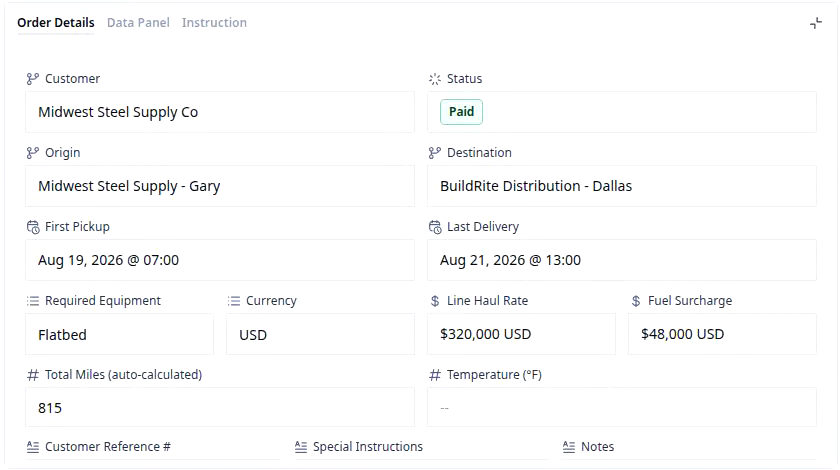
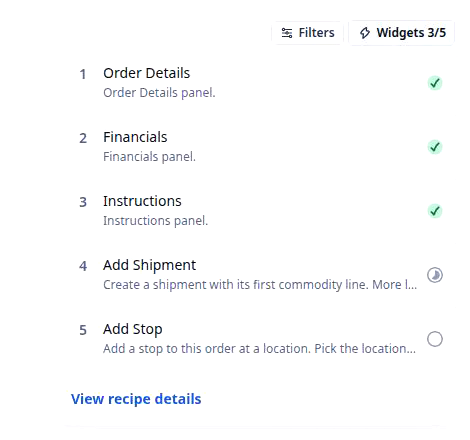
If the noun is new, what a widget is covers the panels on a record page. This page is about the builder that decides what those panels ask for. The clip above shows the result from the team’s side of the screen, on one order. Order Details on ORD-28 is a form of the order’s own fields, filled in. The Activity tab carries a Widgets 3/5 button, and its popover lists the five forms this order walks through, three of them ticked. Below the history, Add Shipment is a blank form for a shipment that does not exist yet. An administrator chose every field on every one of those forms.
What it does
Each section below is one thing an administrator does in Widget Builder, with an example a carrier could set up this week.
Build a form from the record’s own fields
The main job is the edit form: a handful of the record’s fields, with a title and a line of help text. It opens with the current values loaded and saves back to the same record. For example: “Build a Reefer check form with Required Equipment and Temperature (°F), so the driver confirms the set point before pickup and the order carries the answer.” What stays automatic: the values come from the record, the labels are the fields’ own labels, and a save writes to the record every board reads. What stays curated: the title, the description and which fields go on the form. If the object doesn’t have a field yet, add it first in Object Builder.
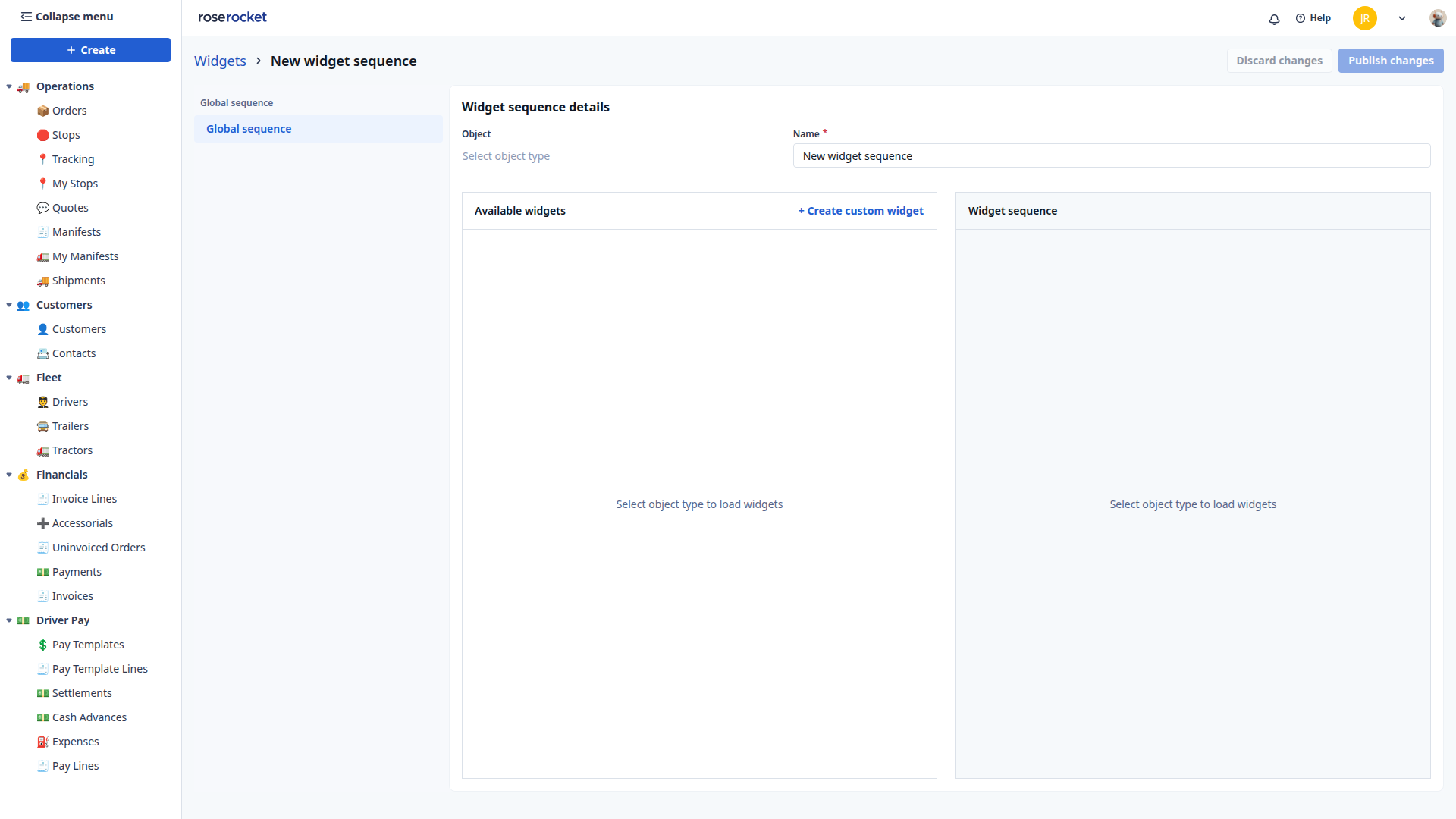
Widget Builder is not a page of its own. It opens inside the widget sequence editor, under Settings:
- Click Settings in the left nav, then go to Widget Sequences › Edit widget. The editor’s breadcrumb reads Widgets.
- Under Widget sequence details, pick the Object, for example Order. Available widgets loads on the left and the Widget sequence on the right.
- To make a new form, click + Create custom widget above Available widgets. Give it a Widget title and a Widget description, choose its Close policy, and pick the fields it shows from the object’s field list.
- Drag the widget into the Widget sequence where the step belongs.
- Click Publish changes. Discard changes throws the draft away, and nothing reaches a record page until you publish.
Decide when a step counts as done
A form’s close policy decides when the sequence moves on. Default closes the form when someone submits it. All True closes it only once every toggle on the form is switched on. For example: “Make a Pre-trip check close only when Lights, Brakes and Seal are all on. A submit with Brakes off keeps the step open.” What stays automatic: the tick on the record, and the sequence waiting at that step until the policy is met. What stays curated: one policy per form, plus the toggles themselves. Each toggle is a field on the object, so every answer lives on the record.
Put the steps in the order the job runs
A widget sequence is the ordered list of forms a record walks through. The editor shows it as three panels: the widgets available to the object, the widgets in the sequence, and the settings of the one you have selected. For example: “Put Financials third, after Order Details and Instructions, so the rate is on the order before anyone adds a shipment against it.” What stays automatic: the Widgets button on the record counts the finished steps, 3/5 on ORD-28, and ticks each form as it completes. What stays curated: the order, which you set by dragging a card up or down.
Your recipe ships a default sequence. When you publish your own, it replaces the default for that object, and the default is kept, so a step you took out can come back.
Hide a step your fleet never uses
Hiding a widget moves it from the sequence back to the available panel. It keeps its setup and stops appearing on the record. For example: “Hide Add Stop for a fleet that only runs door to door, and put a Seal check step in its place.” What stays automatic: the step drops off every order of that object. What stays curated: which widgets are in the sequence at all. Nothing is deleted.
Show a step only to the roles who do it
Each widget in a sequence has its own permissions: a checkbox for every role. For example: “Show Financials to the CSR and finance roles and not to drivers, so a driver’s order runs Order Details, Instructions and the stops.” What stays automatic: a driver who opens the same order doesn’t get the Financials step. What stays curated: one tick per role per widget. Which fields inside a form a role can edit is set on the record’s layout, under detail view permissions.
Make a form for a record that does not exist yet
A form on a record page comes in one of two kinds, and its blanks tell you which. An edit form shows the record you have open and saves to it. A workflow form asks about something that isn’t a record yet. When it’s submitted, it hands the answers to a Rocket Engine workflow, which does the work. For example: “Make Add Shipment require Weight (lb) and Pieces, so nobody can create a shipment on the order without them.” What stays automatic: the workflow runs, and an empty required field blocks the submit. What stays curated: the fields, which ones are required, and the workflow that runs.
| Kind | What it shows | What a submit does | What the builder calls it |
|---|---|---|---|
| Edit form | The record’s own fields, filled in, for example Order Details on ORD-28 | Writes the new values to that record | Custom widget |
| Workflow form | Blank fields for a record that does not exist yet, for example Add Shipment on the Activity tab of ORD-28 | Sends the answers to a workflow that acts on them | Workflow form widget |

The workflow forms you see today, like Add Shipment, came with your recipe. A new one isn’t drawn in the editor. It’s set up for your organization with Rose Rocket, so bring the field list and the workflow it should run.
Pre-fill a form from the record it sits on
A workflow form can open with answers already filled in from the record it sits on. Each field is one of three kinds: editable, read-only for context, or hidden but still sent on submit. For example: “Pre-fill a Create Capacity form’s Ready By Date from the order’s pickup window, show Trailer Type read-only, and send the order’s ID hidden so the new record points back to it.” What stays automatic: the values load when the form opens, and the hidden ones go along on submit. After a submit, the form either clears or refills from the record. What stays curated: which record field feeds which blank, and which blanks stay editable. This is part of the same setup you arrange with Rose Rocket for the workflow form.
Add a field once, and every form can ask for it
A form’s fields are the same fields as everywhere else. The Weight (lb) a driver types into Add Shipment is the column dispatch sorts the Shipments board by, the value a Rocket Engine condition checks before a rate applies, and the number a bill of lading prints. Widget Builder decides which of those fields each person sees, and when. It never makes a copy: a form takes its labels from the same place the board does, so a renamed field reads the same on both. The panels around the form are View Builder’s job. Widget Builder owns what the forms inside them ask.
Availability
Widget Builder, and the widget sequence editor it opens in, are in pilot. They’re open to administrators whose organization has the secondary builder bundle or full builder access, and both flags read pilot on 2026-09-28. Rose Rocket’s own administrators can use them on any organization. Object Builder, where the fields themselves are added, is open to every administrator with no flag. On the demo organization in the clip, Settings showed no Widgets row, and the editor opened but couldn’t load an object. So the clip shows the forms from the team’s side, and the probe screenshot below is the only frame of the editor. Your recipe’s sequences and forms stay as they are. A sequence you publish replaces the default for that object, and there’s nothing to recreate. Once the forms are right, the next question is who sees which panel around them. Give dispatch, finance and drivers their own order view walks through that.