Document Builder: BOLs and invoices printed from your data
Document Builder is where an admin lays out a BOL or invoice once, with the record's fields as placeholders, so every file printed from it reads the data.
On this page3 sections
- Before and after
- What it does
- Print a BOL from the shipment’s own fields
- Change the layout once, for every file after it
- Set one template as the default for a document type
- Edit the page in visual mode, or drop into code
- Preview it on a real shipment before you save
- Put a barcode or QR code on the page
- Print a field the object did not come with
- One Order object, the BOL, the invoice and the board
- Availability
Before and after
Before. The bill of lading for Tuesday’s load was a Word file, and someone retyped it. The shipper, the consignee, the pieces and the weight all sat on the order already, but the BOL template lived in a folder, so a dispatcher copied them across field by field and fixed the date by hand. The invoice was an Excel sheet with the customer’s address pasted from the last one, and the rate confirmation was a PDF the carrier desk filled by copying the order’s rate, equipment and stops into it. Three documents, three copies of the same load, and a seal number typed twice that never matched.
After. An administrator opens Document Builder, lays out the BOL once with the shipment’s fields where the values go, and every BOL printed after that reads them from the record.
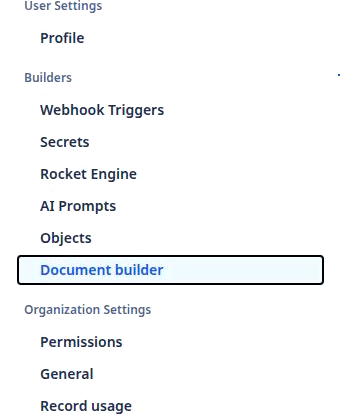
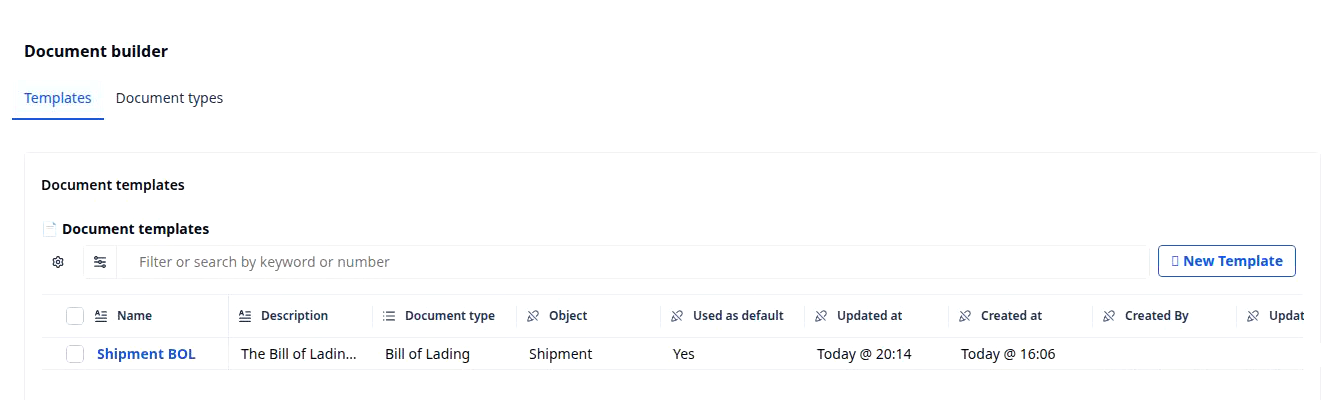
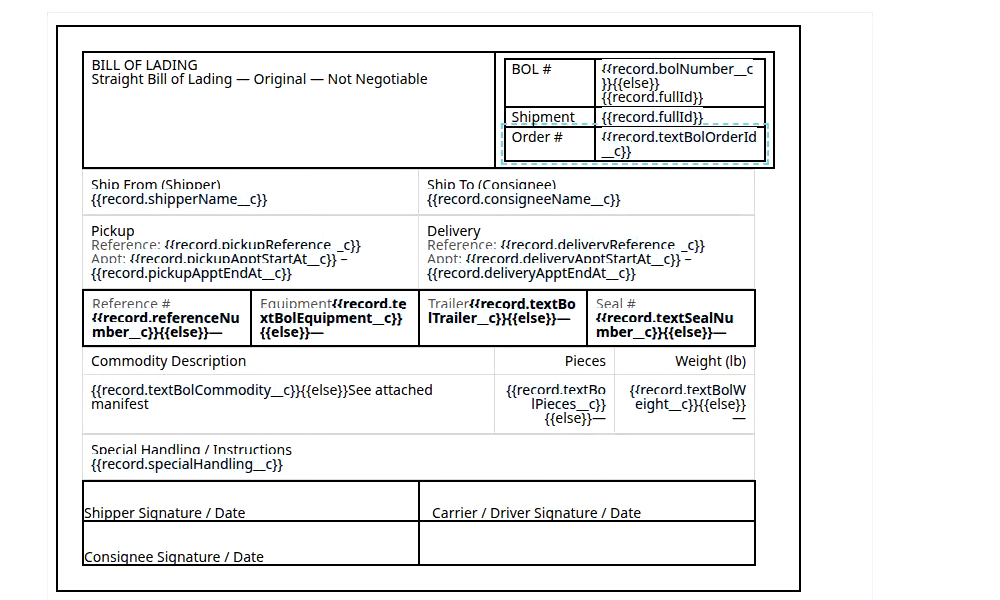
If the noun is new, what a document is covers the file on a record page; this page is about the builder that decides what that file looks like. The clip above is the path an administrator walks. Under Settings, in the Builders group, Document builder opens on a Templates tab with one row per template; the demo organization has one, Shipment BOL, printed from the Shipment object and used as the default. Clicking its name opens the template itself: a BILL OF LADING page whose cells hold placeholders such as {{record.shipperName__c}} under Ship From (Shipper), each one a field on the record the file will be printed from.
What it does
Document Builder is where the layout of a printed document is kept: which document type it prints, which object it reads, and where each field lands on the page. Each section below is one thing an administrator does with it, with an example the demo organization could run.
Print a BOL from the shipment’s own fields
The marquee move is a template with placeholders. Where a Word BOL had a blank, the template holds the name of a field, written as {{record.fullId}} or {{record.consigneeName__c}}, and the file printed from a shipment carries that shipment’s values in those places. For example: “Print a BOL for SHP-22 with the consignee filled in.” What stays automatic: the values arrive from the record at print time, so the BOL, the shipment and the board agree. What stays curated: the layout, and which fields sit where.
The template in the clip is reached in three clicks and nothing is written on the way.
- Click Settings in the left nav. Under Builders, click Document builder.
- The page opens on the Templates tab. The Document templates list shows one row per template with its Document type, Object, Used as default and Updated at.
- Click the template’s name, for example Shipment BOL. The template opens as the page it prints, with Page numbers, Discard changes and Save changes in the header. Both buttons stay disabled until you change something.
Change the layout once, for every file after it
Three things sit behind one printed file, and the builder owns only the first.
| Layer | What it is | Where you meet it |
|---|---|---|
| Template | The layout, with {{record.…}} placeholders where the values go |
A row on the Templates tab of Document builder, and the page that opens from it |
| Document type | The kind of file, and so the object it prints from: a Bill of Lading prints from a Shipment | The Document type and Object columns of the list, and the Document types tab beside Templates |
| Document | One file, rendered from the template for one record | A row on that record’s Documents tab |
Edit the template and every file generated from it afterwards prints the new layout; the records and the files already on them are untouched. For example: “Add the PRO number to every invoice.” One placeholder added to the invoice template, and the next invoice printed carries it. What stays automatic: every document of that type picks up the change. What stays curated: the template is edited by hand, and a file printed last week is not reprinted.
Set one template as the default for a document type
A document type can have several templates and one default. The default is the one Rose Rocket picks when a file of that type is generated without anyone choosing; the list shows it as Used as default Yes and the editor header carries a Default chip. For example: “Set the Shipment BOL as the default for the Shipment object’s Bill of Lading, so every shipment prints the same form.” What stays automatic: only one template is the default for a type at a time, and generation uses it without a prompt. What stays curated: which template that is.
Edit the page in visual mode, or drop into code
The template opens as the page it prints, and you edit it the way you would a document: a toolbar for text, alignment and font, and the placeholders typed or picked into the cells. That is visual mode, and it is what the clip shows, with an Edit mode control at the end of the toolbar. A code mode also exists, where the same template is the page’s markup with the placeholders in it, beside a live preview; it is not in the clip. For example: “Move the Seal # box beside Trailer on the Shipment BOL, and make the shipper’s name bold.” What stays automatic: Save changes and Discard changes wake up only once something changed, and discard puts the last saved template back. What stays curated: which mode you work in. Switching from visual to code warns you first, and a template last saved in code mode does not reopen safely in the visual editor, so pick code only when the layout needs it.
Preview it on a real shipment before you save
A template is checked against a record. The editor renders the page with one of your recent records in the placeholders and lets you step to the next one, so a shipment with two reference numbers and one with none are both seen before the template goes live; Page numbers in the header adds a page count to the footer of the printed file. For example: “Preview the Shipment BOL on SHP-22, then on the shipment after it, before saving.” What stays automatic: the preview uses the same rendering as the download, so what you see is what the dock gets. What stays curated: which records you check, and whether page numbers are on. The preview and the record stepper are described here from the product’s documentation; the clip ends on the template page and does not show them.
Put a barcode or QR code on the page
A placeholder can print as a code instead of text. The editor’s insert menu adds a barcode or QR code whose value is a field, such as the shipment’s ID, and the code is drawn when the file is generated, so each BOL carries its own. For example: “Print the shipment ID as a Code 128 barcode on the BOL so the dock scans it on arrival.” What stays automatic: the code is generated per file from the field’s value, inside a repeated commodity line as well. What stays curated: which field, which code type, and where on the page. The insert menu is not opened in the clip; this section is from the product’s documentation.
Print a field the object did not come with
A template can print any field on its object, including the ones your organization added. The Shipment BOL in the clip already does: Order # prints {{record.textBolOrderId__c}}, a custom field, and the BOL # cell prints a custom BOL number and falls back to the shipment’s ID when it is empty. For example: “Print the customer’s PO number from the custom field the CSR fills at order entry.” What stays automatic: once the field is on the object, it is in the picker and on every record. What stays curated: adding the field, which happens once in Object Builder, as in customize the Order object.
One Order object, the BOL, the invoice and the board
A template reads its object and the records connected to it, so the Weight (lb) on the BOL is the same weight the dispatcher sorts the Shipments board by, the same value a Rocket Engine condition tests before a rate applies, and the same number the invoice line prints. Document Builder never keeps a copy of the data: rename the field in Object Builder and every template that prints it reads the new value under the new name. Where the printed file lands, the Documents tab of the record page, is laid out by the detail view builders; a rule that freezes an invoiced order, as in protect invoiced orders, still lets the paperwork be added to it.
Availability
Document Builder is rolling out. The Document builder row under Settings › Builders opens for Rose Rocket administrators, and for an organization’s own administrators through the secondary builder bundle or full builder access; both flags read pilot on 2026-09-25. On the demo organization in the clip the row was on camera because the login is an internal administrator. The ORD-28 record page’s Documents tab had no rows the last time it was on camera, 2026-09-23, so this page shows the template and not a file printed from it. Templates you already have keep working; a template you edit changes only the files generated after the save. When the layout is right, the next question is usually a field the object does not have yet; customize the Order object adds it once and the template prints it.