What is a permission in Rose Rocket? One yes or no per role
A permission is a yes-or-no attached to a role: whether its people can see a board, open a record page, read or change a field, create or delete records.
On this page3 sections
What it is
A permission is a yes-or-no attached to a role: whether the people in that role can see a board, open a record page, read or change a field, create or delete records, or use a panel.
Take a driver, for example. Their role can open its own stops on My Stops and never sees the Invoices board: two permissions, one yes and one no, attached to the driver role, not the person. Everyone who holds the role gets the same answers. That is why two people in one organization can open the same order and see different pages.
Every permission belongs to a role
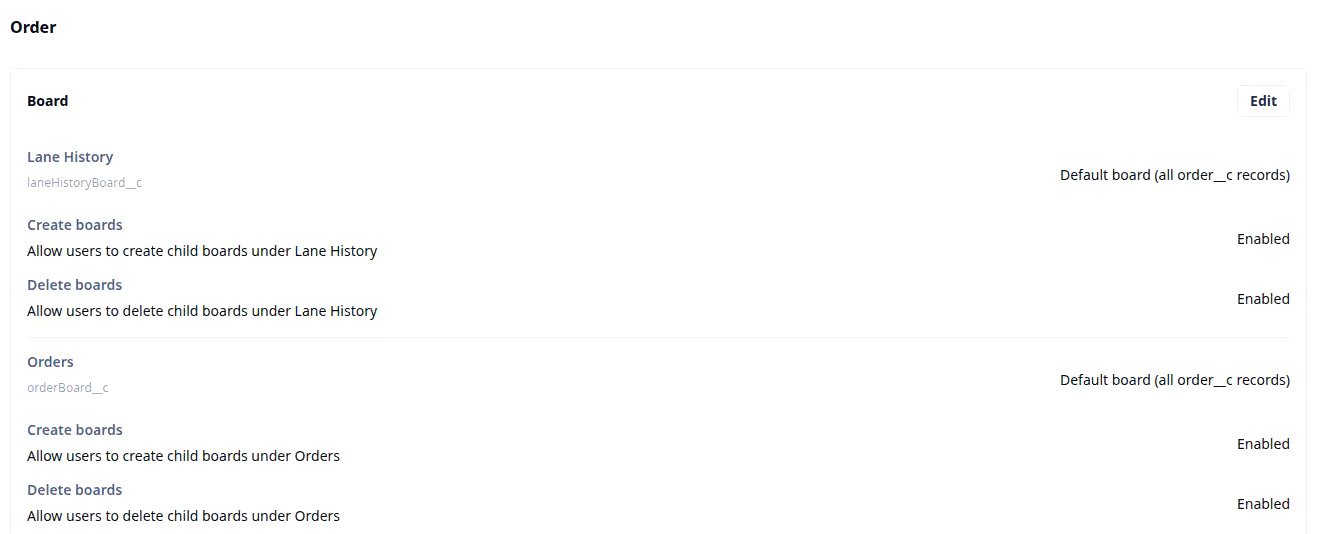
A permission is a line on a role’s page, for example Roles › Admin, where the Permissions list has one entry per kind of record. Choose Order and the yes-or-no lines for orders sit in three cards, Board, Record and Data, each row reading Enabled or not, each card with an Edit button. Change one line and everyone holding that role changes on their next page load.
- Open Settings, then Users, Roles, Groups.
- Choose the Roles tab and click a role’s name, for example Admin.
- Under Permissions, choose the kind of record, for example Order.
The four kinds
| Permission | What it controls | What you see without it |
|---|---|---|
| Board | Whether a board opens for your role, and whether you may add or delete boards under it (Create boards, Delete boards) | The board is not in your left nav; nothing to add under it |
| Record page | Which sections and panels of a record page your role gets and which fields it may edit, set on a different screen, detail view permissions | A shorter page: the panel is absent, or a field shows its value and refuses an edit |
| Field | Whether your role can read a field’s value at all, or change it (Access Type on the Data card) | The value is missing from the record page and the board column; a panel that needs it renders empty |
| Records and panel actions | Whether your role may create or delete records of that kind (Create records, Delete records), and add from a panel | No Create for that kind of record, no delete; a panel you can read but not add to |
A row filter is not a hidden board
A board can also be narrowed without any permission. A copy of a board carries a Security filter, for example Customer is Great Lakes Foods Co., and every view on that copy shows only those rows, for everyone who opens it, including anyone on a public link, as in give a customer their own live orders board. A board permission is a different thing: it decides whether the board opens for a role at all. Hide the Invoices board from drivers with a permission; show a customer only their orders with a Security filter on a copy.
Builders call a role’s whole list its permission policy, and each yes in it a grant.
Where you meet it in Rose Rocket
- Settings › Users, Roles, Groups (for example, the Roles tab, then Admin › Permissions › Order) → the Board, Record and Data cards, one row per yes-or-no → what that role may do with orders.
- Board builder › Security filters (on a copy of a board, for example an Orders board duplicated for one customer) → Add filter, Customer, is → which rows the board shows; the board itself stays visible.
- Record page (for example, ORD-28) → the sections and panels your role was given, a field that reads but does not edit → detail view permissions at work.
Go deeper
- Org: the organization a permission lives inside
- Board: what a board permission opens or hides
- Field: what a field permission reads or locks
- Detail view: the record page a permission shapes
- Detail view permissions: the record page how-to, role by role
- Board views: views, child boards and Security filters
- Give dispatch, finance and drivers their own order view: permissions on one order