Send notification: alert your team from a Rose Rocket rule
Send notification is the Rocket Engine action that alerts your own users when a rule fires on an order, names the order, and picks how the alert arrives.
On this page3 sections
What it does
Once you know how a workflow runs, Send notification is the action that tells your own people something changed. Send email is for reaching a customer. Send notification goes to users in your organization, so dispatch hears about an order without watching the board or waiting for someone to forward an email.
You write the alert once on the rule. Each time the rule fires, the alert fills itself in from the record that woke it and goes to the user you picked on that record. For example, a rule on Order sends the person who created the order “Order” followed by that order’s Order ID and “was updated”, with the order’s Status in the body, by email and in their inbox.
| Part | What it does | For example |
|---|---|---|
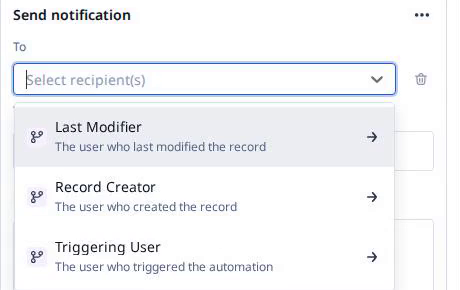
| To | Who gets the alert. Pick a user connected to the record: Last Modifier (the user who last changed it), Record Creator (the user who created it) or Triggering User (the user whose action set off the rule). Each one opens to that user’s connection. | Record Creator › Record Creator (Connection) |
| Title | The alert’s headline. Type { to drop a field from the record into it. The field shows as a chip and becomes that record’s value when the alert goes out. |
Order, then the Order ID field, then “was updated” |
| Body | The message under the title. Fields work the same way. | “Open the order for the latest status. Status:” then the Status field |
| Default settings for users | Tick Enable for all users by default to choose the channels every user starts with. Each user can change them later under Settings › Profile. | Enabled, with Email and Inbox ticked |
| Default notification channels | How the alert arrives. Email goes to the user’s own address, Inbox lands in the in-app notification center in Rose Rocket, and Toast pops the alert up on screen while they work. | Email and Inbox, Toast off |
How you set it up
- Click Settings in the left nav, then Rocket Engine under Builders. Click Create workflow.
- Click Create step and pick the trigger Record updated. Set Record type to Order.
- Under Conditions, add the check that narrows the rule to the change your team needs to hear about. The condition page covers how.
- Under Action, click Send notification.
- Click To, pick Record Creator, then Record Creator (Connection).
- In Title, type “Order “, then type
{and pick Order ID, then type “ was updated”. Write the Body and add Status the same way. - Under Default settings for users, tick Enable for all users by default. Under Default notification channels, keep Email and Inbox ticked.
- Click Save changes once the condition is in place. To leave without a live rule, click Discard changes instead.
Late ETA alerts puts alerts like this to work: one rule tells dispatch when a shipment slips.
What to watch for
- Record updated wakes on every edit. With no condition, the rule alerts on every change to the order: a new note, a rate fix, a reassigned driver. A team that gets an alert on every save soon stops reading them. Add the condition before you save.
- The person who made the change can be the one alerted. On a Record updated rule, Triggering User and Last Modifier are usually whoever just edited the order, so they get told about their own edit. To reach someone else, pick the user tied to the order, such as Record Creator.
- The picker offers users, not teams. On this org, To listed only the three users connected to the record. There was no role or group to pick, and no box to type an outside address. To reach a customer, use the Send email action instead.
- Email and Inbox are both on by default. Ticking Enable for all users by default ticks Email and Inbox together. Untick Inbox if you only want the email. The channel list does not show until that box is ticked.
- Defaults are where users start, not where they stay. Each user can change their channels under Settings › Profile, so one dispatcher may get the email while another sees the alert only in their inbox.
- A saved rule is a live rule. The new workflow shows Active before you have saved anything, and Save changes puts it to work on the next order it matches. A workflow that is switched off sends no alerts.
- The To box shows the internal name. Once you pick Record Creator, the box reads
$createdByrather than the label you clicked. That is the same recipient.