Send email: email a customer from a Rose Rocket workflow
Send email is the Rocket Engine action that emails each order's own customer when a rule fires, with the order number filled in and a button back to it.
On this page3 sections
What it does
Once you know how a workflow runs, Send email is the action that writes the email for you. You write it once on the rule, and each time the rule fires it fills itself in from the record that woke it. The right customer gets their own order number and a button back to that order, and nobody retypes the message.
For example, a rule on Order emails the order’s customer at their Billing Email, with the subject “Update on your order” followed by the order’s Order ID, a two-line body and a View order button. Every order the rule touches gets its own copy, addressed and numbered for that order. The email goes out with your organization’s logo and footer, not a Rose Rocket signature.
| Part | What it does | For example |
|---|---|---|
| To | Who gets the email. Type an address, or pick From a field to take it from the record: a user, or a text field holding an email, on the order or on a record connected to it. Each address in To gets its own email. | From a field › Customer › Billing Email |
| Cc | Copies more people on each email. | The dispatcher who owns the customer |
| Subject | The subject line. Type { to drop a field from the record into it. The field shows as a chip and becomes that record’s value when the email is sent. |
Update on your order, then the Order ID field |
| Body | The message. Fields work the same way, and your line breaks are kept. | “There’s an update on your shipment. Open your order below for the latest status.” |
| Button (optional) | A button under the body that opens the record in Rose Rocket. Its text can carry a field too. | View order |
| Attachments | Attaches the latest document on a connection, for example the order’s bill of lading. | The newest Bill of Lading on the order |
How you set it up
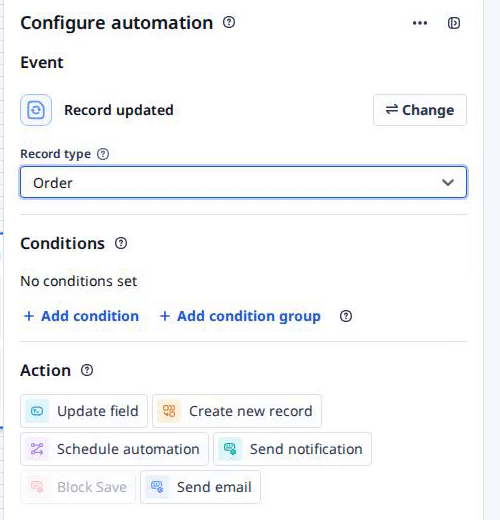
- Click Settings in the left nav, then Rocket Engine under Builders. Click Create workflow.
- Click Create step and pick the trigger Record updated. Set Record type to Order.
- Under Conditions, click Add condition and narrow the rule to the change you want the customer to hear about. The condition page covers how.
- Under Action, click Send email.
- Under To, pick From a field, then Customer, then Billing Email. Pick Customer itself, not a field like Customer Reference # that starts with the same word.
- In Subject, type “Update on your order “, then type
{and pick Order ID. Write the Body. - Click Add button and type the button text: “View order”.
- Click Save changes once the condition is in place. To leave without a live rule, click Discard changes instead.
Late ETA alerts puts the same action to work: one rule, one email to dispatch and one to the customer when a shipment slips.
What to watch for
- Record updated wakes on every edit. The trigger fires when any field on the order changes, so a rule with no condition emails the customer each time anyone touches the order: a new note, a rate fix, a reassigned driver. Add the condition before you save.
- A saved rule is a live rule. The new workflow shows Active before you have saved anything, and Save changes puts it to work on the next order that meets it. Point To at your own address while you check the wording, then switch it to the customer’s field.
- No address, no email. If a customer’s Billing Email is blank, that order’s email is not sent, and nobody sees an error. Check that the field you pick is filled on your customers before you rely on the rule.
- The button needs a login. It opens the order inside Rose Rocket, so a customer without a login to your organization lands on a sign-in page. For a customer with no login, put what they need in the Body. If the button text is blank, the email goes out without a button.
- The To box shows the field’s internal name. Once you have picked Customer › Billing Email, the box reads
customer__c > billingContactEmai…rather than the labels you clicked. That is the same field. Read the path to check you picked the customer’s email and not a contact’s. - A missing attachment does not stop the email. If the order has no document on that connection, the email goes without it.