Rocket Engine: one engine behind every Rose Rocket rule
Rocket Engine holds every automatic rule in your Rose Rocket organization in one table, one row per rule, each opening as trigger, conditions and action.
On this page4 sections
Before and after
Before. The rules that keep a trucking office honest live everywhere except on the record. There is a rules spreadsheet on the shared drive that says invoiced orders keep their carrier and their rate, and nobody has it open at five on a Friday. There is a dispatcher who re-checks every invoiced order once a week for a stop moved after billing, and finds out three days late. And there is a Zap that copies a status from one tool to another, which stopped working the day a field was renamed and told no one. Each fix sits somewhere else, each depends on someone remembering, and the record knows nothing about any of them.
After. Every rule lives in one table under Settings › Builders › Rocket Engine, attached to the record it protects, and it runs on every save whether anyone remembers or not.
If the word is new, what a workflow is covers the three parts a rule is made of; this page is about the engine that runs them. The clip above is the whole path. Click Settings in the left nav, then Rocket Engine under Builders, and the Workflows table lists every rule in the organization, one per row: the object it watches, the event that wakes it, the condition that must hold and what it does. Click the row Block edits on a sent invoice and the builder opens the same rule as one readable node: the trigger, Record committed on Invoice; the conditions, Status is in sent, partiallyPaid or paid and one of the billing fields has changed; the action, Block save. A sent invoice whose date somebody changed meets that rule and the edit is refused, so the customer’s copy stays true.
What it does
Rocket Engine holds two shapes. An automation is one trigger, one condition and one action, drawn as a single node, like the rule in the clip. A workflow is a longer job: several steps, branches, a wait if it needs one, a run history of its own, and it can start on a schedule with no record behind it as well as on a record event. The Type column tells the two apart; every other column reads the same way for both. The product’s word for a row is workflow, and the concept page uses that word for both shapes. This page says rule, because that is what an office calls “once an invoice is sent, nobody changes it”, and a row is one rule whichever shape it takes. The trigger, the condition and the action will each get their own page under this one.
Block edits on a sent invoice
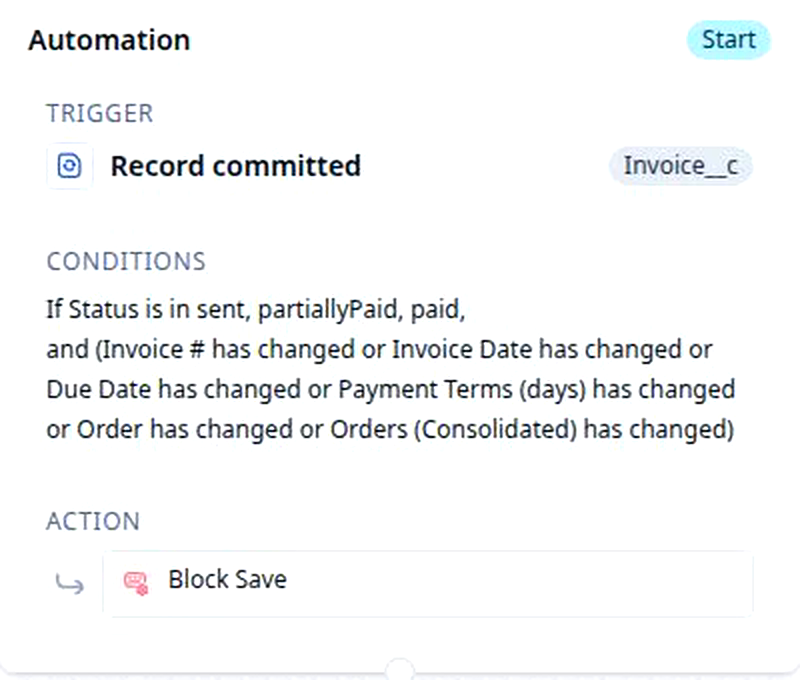
A rule can refuse a save outright when the record is in a state you named and a field you named has changed, and show your message instead of the saved change. The rule in the clip says it in one line: “Once an invoice is sent, partially paid or paid, nobody changes its number, its dates, its terms or the orders on it.” Its action is Block save, and the backward look that asks whether a field changed during this save is the Has Not Changed condition. What stays automatic: the check runs on every save by every role, the record rolls back to what it was, and the person sees the message right where they were typing. What stays curated: the states, the fields, the wording of the message and the role that may bypass it, all of which Block Save walks through.
Flip the order to Delivered when every shipment is
A rule can write a field on the record that fired, or on a record connected to it, so a status nobody typed still lands where the board and the customer read it. For example: “When the last shipment on an order reads Delivered, set the order’s Status to Delivered.” The table’s Action column calls that Set value. What stays automatic: the order flips in the same save as its last shipment, on every order, and the Orders board, the customer’s live view and any rule watching the order see the new status at once. What stays curated: the field, the value, and the condition that says every shipment, not the first one.
Ping the order when a stop moves
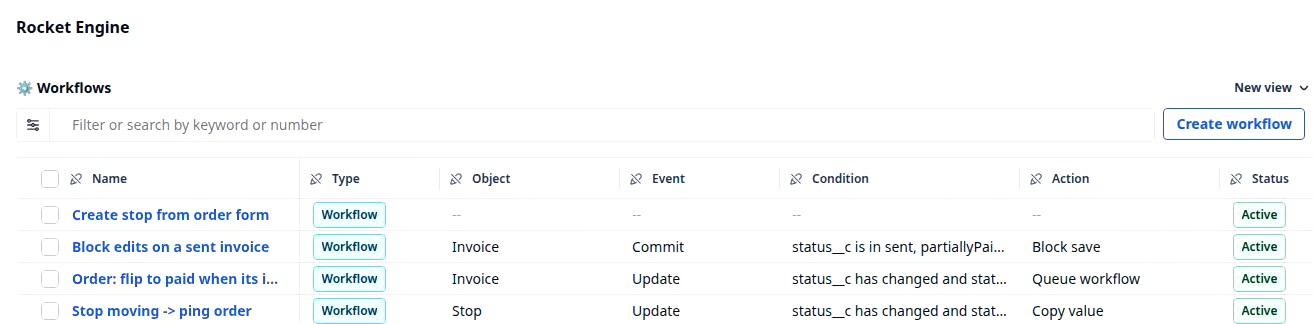
A rule on one record can write onto a record it is connected to, so news travels up from the stop to the order without anyone re-keying it. The row Stop moving -> ping order in the clip does exactly that: it watches stops, wakes on an update, checks that the stop’s status changed, and its action is Copy value, the stop’s status copied onto its order. What stays automatic: it fires for every stop on every order, inside the same save, and the order’s page and board row show the change at once. What stays curated: which field travels, and to which connected record.
Queue a longer job when one rule is not enough
When the job has branches, waits on something, or takes longer than a save should, the action hands off to a workflow instead. The row that flips an order to paid once its invoice is paid is one: it watches invoices, wakes on an update, and its action is Queue workflow, the job that finds the invoice’s order and marks it paid. A workflow can also start on the clock rather than on a save, for the chores that happen because it is Monday: “Every morning at six, expire the quotes that have sat unaccepted for thirty days.” What stays automatic: the workflow runs in the background with its own run history under the builder’s Runs tab, a scheduled one runs on its cadence in the time zone you set whether or not anyone has logged in, and the engine stops a loop where one workflow’s save wakes another that wakes the first. What stays curated: the workflow itself, its steps and branches, built in the same builder; and for a scheduled one, the cadence, which can be paused without being deleted.
One object, every rule
Everything a rule reads or writes is a field on an object, the same field the boards, the filters and the documents use. Add Required Equipment to the Order object once in Object Builder and it is a column on the Orders board, a filter in a saved board view, a condition in a rule (“Required Equipment is Reefer”) and a merge field on the rate confirmation. A rule addresses a field by its key, not its label, so renaming Required Equipment to Trailer Type next quarter breaks nothing that reads it. It compounds the other way too: a status a rule sets is a value every other rule, view and document can rely on, which is how one row in the table retires a spreadsheet.
Build your first rule
One rule, start to finish: invoiced orders keep their carrier. It is the office rule most often kept in someone’s head, every control it needs is in the builder today, and protecting invoiced orders is the longer version with a bypass for billing.
- Click Settings in the left nav, then Rocket Engine under Builders. The Workflows table opens with every rule already in your organization.
- Click Create workflow, top right of the table. The builder opens on an empty canvas that reads Start the workflow by creating a step.
- Click Create step. The first step is the trigger, and its panel asks two things: which records, and which moment.
- Choose the record type: Order. Choose the event: Record committed. The picker offers Record created, Record updated, Record deleted and Record committed; pick committed whenever the rule asks whether a field changed, because only that moment still knows the value from before the save. Pick Record updated instead and the builder will offer to switch you.
- Add the condition as two checks joined by and: Status is in Invoiced, or whatever your office calls a billed order, and Carrier has changed. Leave the condition empty and the rule would fire on every save of every order.
- Add the action and pick Block save from the list; the same list offers a notification, an email, a new record, a field to set and a workflow to queue. Type the message the dispatcher will read: “This order is invoiced. Ask billing before changing the carrier.”
- Click Edit name, the pencil beside the heading, and name it Invoiced orders keep their carrier. The table shows the name, so write it as the sentence it enforces.
- Click Save changes. The rule is a new row in the table, marked Active, and it is live on the next save. Test it: open an invoiced order, change the carrier, and meet your own message.
Availability
Rocket Engine is admin work. The Rocket Engine row under Settings › Builders appears for administrators in organizations where it has been switched on, and it is rolling out by organization. The rules themselves are not waiting on it: existing automations already sit in the table beside the workflows, typed as such in the Type column, with nothing to recreate. Pick the rule your office already enforces by hand, for example protecting invoiced orders or late ETA alerts, and build it as one row.