Formula fields: write one in Object Builder, then test it
How to write a formula field in Object Builder, what its functions do, and what breaks: never editable, formatting turns it to text, fixed currency rates.
On this page3 sections
What it does
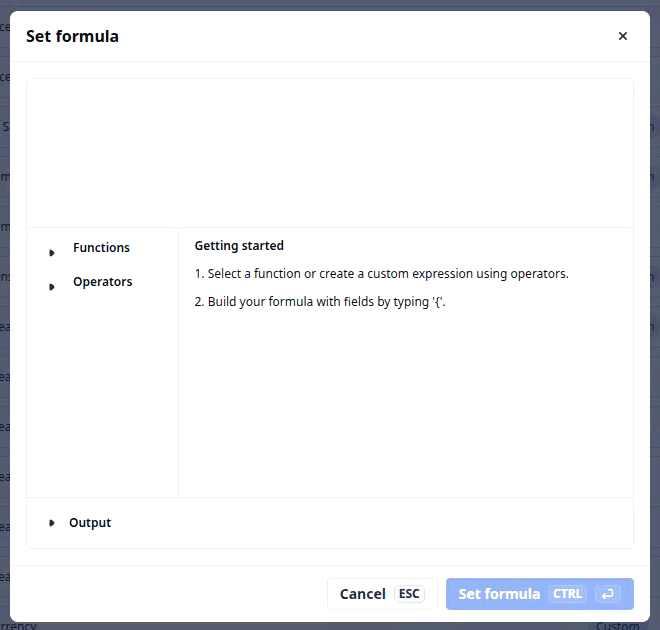
Once you know how a formula field computes its value, this page is how you write one and what to check before a board relies on it. A formula is a field type in Object Builder, created from the same Create custom field form as any other. The difference is the Set formula dialog: that is where the formula is written, and nothing on the record works until it is set.
A formula names other fields of the record in curly braces and combines them. The Functions list in the dialog groups what it can do; if you have written spreadsheet formulas, every group has a familiar counterpart.
| Function category | What it does | Excel analogy |
|---|---|---|
| Operators | Add, subtract, multiply and divide fields; brackets set the order | =(A1+B1)/C1 |
| Logical and conditional | Test a value and return one result or another, for example a flag when the rate is zero | IF, = |
| Math and aggregation | Add up, count, average, find the lowest or highest, round up or down; also across connected records, such as every shipment’s weight | SUM, COUNT, AVERAGE, MIN, MAX, CEILING |
| String | Join text and values, for example a lane label from the pickup and delivery cities | CONCATENATE |
| Date and time | Today’s date, the time between two dates in days, hours or minutes, a date moved forward or back, whole days since an event | TODAY, DATEDIF, EDATE |
| Type conversion and formatting | Show a number as money, a percentage, a weight, a length or a duration; turn a US rate into Canadian dollars at a rate you give | a cell’s number format; =A1*rate |
The result has a type of its own, and that type decides how the field behaves everywhere else: a money result can be totalled in a chart on a board view, a date result can be grouped by week. Output in the dialog shows that type before you save.
How you set it up
- In Settings › Objects, open the object, for example Order, and click Create custom field. Type the Field name, for example Rate per mile, and pick Formula in Field type. The form shows No formula added and a Set formula button, and Duplication behavior cannot be set: a copied record works the formula out again.
- Click Set formula. The dialog opens on an empty formula box with Functions, Operators and a short Getting started guide.
- Type
{and pick a field from the suggestions, for example Line Haul Rate. Add an operator and the next field, so Rate per mile reads Line Haul Rate divided by Total Miles. - For anything past arithmetic, open Functions and insert one. For example, a Days on the road field is
dateDiffover Last Delivery and First Pickup, in days. - Watch the box as you type: the dialog checks the formula as you go and flags a field name or a bracket it cannot read. Open Output to see the type the result will have, such as money in USD, before you commit to it.
- Click Set formula, or press Ctrl+Enter. It stays greyed out while the box is empty. Then click Create, drag the field into a section of the Internal data panel and save.
Test it on one record where you already know the answer. On an order at $320,000 over 815 miles, for example ORD-28, Rate per mile should read about $393.
What to watch for
- It is never writable. No one can type over a formula: the record page shows a result with no edit box and a board cell does not open. If people need to override the number, make a typed field instead and let a workflow fill it, the way some organizations store Total Miles rather than compute it.
- A formatting function hands back text. Wrap a result in the function that shows it as money or a percentage and the answer comes back as text, for example -$500.00 USD or 45%, not as an amount. Output then reads a text type, and a board cannot add text up. Keep the result a number or money so a chart can total it, and format it last, only when a label is the point.
- A currency rate is the number you typed, on every record. The conversion function takes the rate as part of the formula, so it never follows the market. A formula is worked out each time the record is read, so when you change 0.73 to 0.71 every order reads the new rate, last month’s invoiced ones too. When a record needs the rate it had on the day, store the converted amount in a typed field instead.
- Deleting a field does not check the formulas that use it. Before a field is deleted, Object Builder lists the workflows that read it, and only those. A formula that names the field is not in that list. Before you retire a field, open each formula on the object and read it for the field’s name.