Condition: the check a Rocket Engine rule makes first
A condition is the if of a Rocket Engine rule: checks on a record's fields, joined by and or or, that must hold when the trigger fires or nothing runs.
On this page3 sections
What it does
Once you know how a workflow runs, the condition is the check in the middle. Each time the trigger fires, the condition looks at the one record that woke the rule and asks whether its fields hold what you said. If they do, the action runs. If they do not, nothing happens and the save goes through as usual. What the condition can see depends on the event: only Record committed carries what a field held before the save, which is why the trigger comes first.
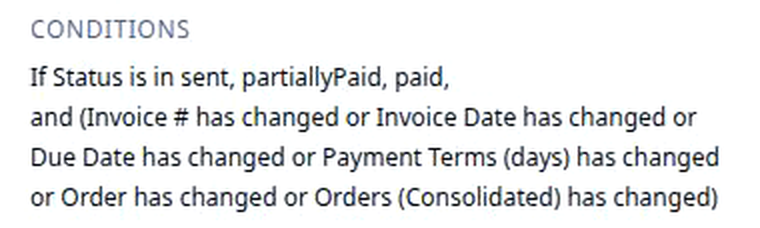
A condition is one or more checks. Each check names a Field, an Operator and, for most operators, a Value. For example, the rule Block edits on a sent invoice goes on only when Status is in sent, partiallyPaid or paid and one of six billing fields has changed. Leave the condition empty and the rule runs every time its event fires, on every record of that object.
The operator decides what counts as a match. The product has fourteen, in five groups:
| Group | On screen | What it checks | Example |
|---|---|---|---|
| Compare | equals | The field holds exactly this value | Required Equipment equals Reefer |
| Compare | does not equal | The field holds anything but this value | Service Level does not equal Standard |
| Compare | greater than | The field is above the value | Total Miles greater than 500 |
| Compare | greater than or equal to | The field is at or above the value | Pallet count greater than or equal to 26 |
| Compare | less than | The field is below the value | Margin less than 0 |
| Compare | less than or equal to | The field is at or below the value | Payment Terms (days) less than or equal to 15 |
| Empty | is empty | The field has no value; no Value box to fill | Carrier is empty, so nobody has covered the load yet |
| Empty | is not empty | The field has any value at all | Origin Location is not empty, so there is an address to copy up to the order |
| Text match | contains | The text holds these characters anywhere | Delivery instructions contains liftgate |
| Text match | starts with | The text opens with these characters | Invoice # starts with INV |
| Text match | ends with | The text closes with these characters | Billing email ends with @shipper.com |
| List | in | The field holds one of the values you list | Status in sent, partiallyPaid, paid |
| List | not in | The field holds none of the values you list | Status not in draft |
| Has changed | has changed | The value moved during this save. The opposite check, the has not changed condition, has its own page | Invoice Date has changed |
The Operator list only offers what fits the field. Open it on the Status check of that rule, which reads in, and you get seven: equals, does not equal, is empty, is not empty, has changed, in and not in. Nothing compares sizes or matches text, because a status has no greater than. The list shows five at a time, so scroll it to reach in and not in. The Workflows table and the rule’s node print in as is in; it is the same check.

The Workflows table’s Condition column shows which fields each rule watches without opening it.
How you set it up
- Click Settings in the left nav, then Rocket Engine under Builders. Click a rule’s name in the Workflows table to change it, or Create workflow to start one.
- Click the trigger on the rule’s node to open Configure automation, and set the Event and the Record type first. Changing the record type later clears every condition on the rule, because the fields belong to the object.
- Under Conditions, which reads No conditions set on a new rule, click Add condition. Pick the Field, then the Operator, then the Value, for example Status in sent, partiallyPaid, paid.
- Click Add condition again for each further single check, and pick how it joins the one before: And when both must hold, Or when either will do.
- When several fields should each count, click Add condition group instead. A group is a nested set of checks with its own And or Or: the brackets on the node. Block edits on a sent invoice keeps its has changed checks inside one group, joined by Or, and Status outside it, joined by And.
- Read the Conditions line on the rule’s node back as one sentence. If it says what you meant, pick the action and click Save changes.
Protecting invoiced orders walks a two-check condition end to end: Status is invoiced and Carrier has changed, then Block save.
What to watch for
- No condition means every time. An empty condition is not a draft; the rule runs on every event it wakes on, for every record of the object. A rule on stops with Record updated and no condition runs on every stop edit in the office.
- Brackets decide what Or reaches. Add the has changed checks as single conditions instead of one group and the Or reaches the state check too: a draft invoice whose date moved would trip a rule meant only for sent ones. Look for the brackets on the node’s Conditions line.
- has changed asks for the commit event. Add one on a rule set to Record created or Record updated and the builder asks Switch to Commit event?, because only Record committed knows what the field held before. Click Switch To Commit; the has not changed condition page covers the before value in full.
- A condition cannot ask who is saving. Checks read the record, not the person, so “unless the user is in Billing” is not something a condition can say. Put the exception in the action instead, for example the roles that may save anyway on Block save.
- Not every field is offered. The condition editor lists the fields a person can see on the record. System fields, for example who created the record, and a few field types are left out, so a rule cannot check them.
- The Condition column shows field keys and stops after one line. The table prints status__c and originLocation__c where the builder prints Status and Origin Location, and cuts the rest off. Open the rule in Rocket Engine and read the node before you copy or change one.